1Getting in
Open your school's board
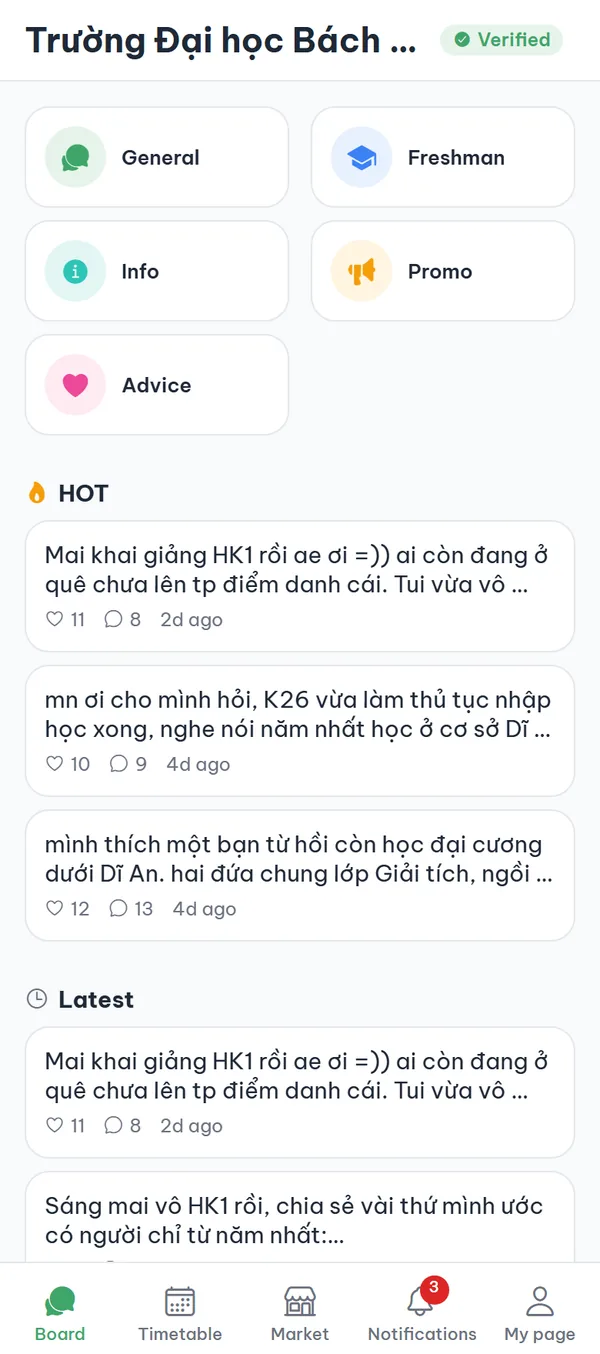
After you log in, the app opens straight to the "Board" tab. Posts appear only once your school is verified — before that you see the "Verify your school to join the community" screen with a "Verify school" button. Once verified, the top shows your school name with the "Verified" badge, below it a grid of 5 boards, and under that the "HOT" and "Latest" sections.
- Your school only Every post on the board comes from verified students of your own school, and you cannot open another school's boards.
- Verify first Until your school is verified you cannot read any post, not even a blurred preview.
- Students online The header shows how many students from your school were active in the last 60 minutes, and hides the number when there are fewer than 5.
- HOT and Latest Below the grid sit the "HOT" and "Latest" sections, each showing up to 10 posts.
2Boards
Pick a board and browse its posts
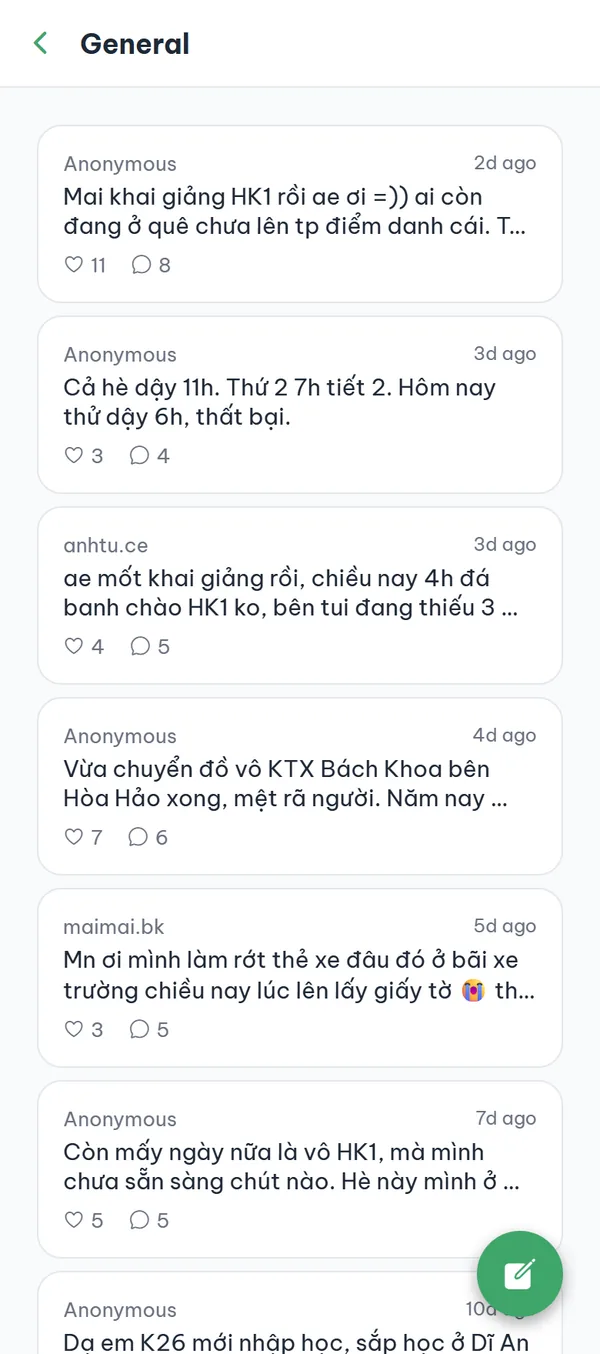
Tap a card in the grid to open that board's list. Posts are newest first, load 20 at a time, and continue automatically as you scroll. Each card shows the writer's name, the time, the first two lines of the text, a thumbnail, and the like and comment counts.
- Five boards "General", "Freshman", "Info", "Promo", and "Advice" — the same five at every school.
- Scroll to load more The list loads 20 posts per batch and appends the next batch when you reach the end.
- Empty board If a board has nothing yet you see "No posts yet" with a "Write the first post" button.
- Names follow language The five board names follow whichever app language you picked; the posts inside are the same in every language.
3Posting
Write a post with photos, anonymously
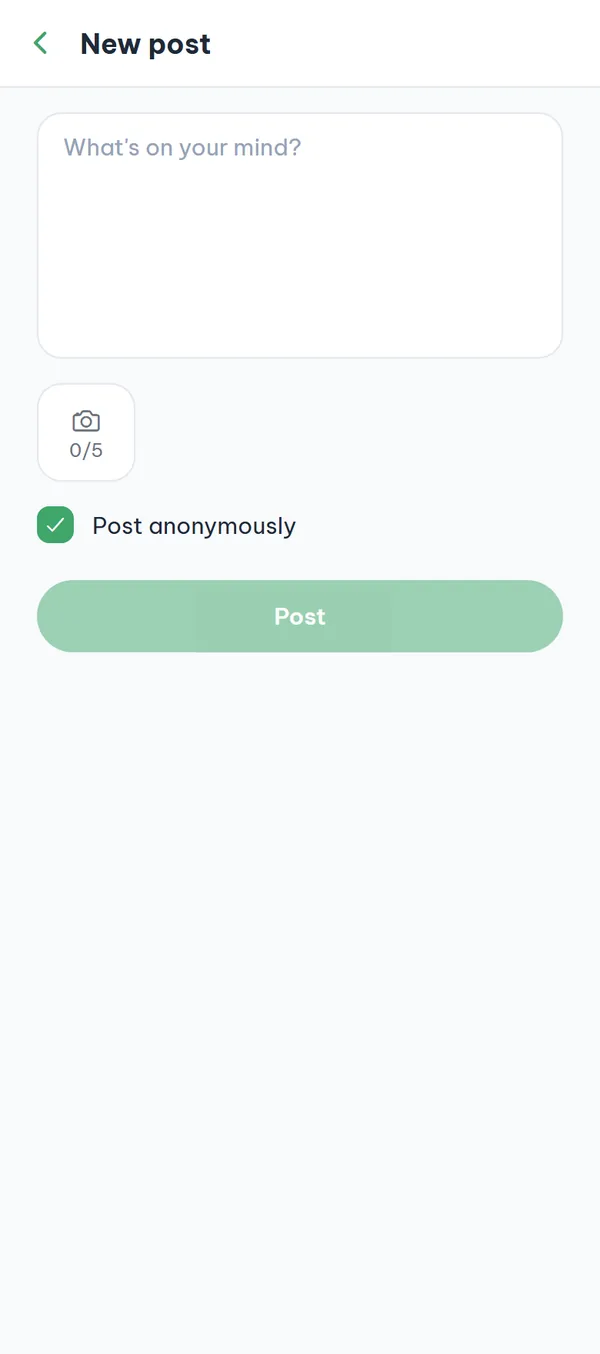
Tap the round pencil button at the bottom right of the list to open the "New post" screen. There is no title field — you write straight into "What's on your mind?", up to 5,000 characters. Use the camera tile below to add photos from your gallery, one at a time and up to 5; the tile shows how many you have added, and tapping a thumbnail removes that photo. Then tap "Post".
- Body only A post has no title; you write only the body, up to 5,000 characters.
- Up to 5 photos Photos are picked one at a time; the app shrinks each photo before upload and strips its EXIF data, including GPS location.
- Anonymous is on The "Post anonymously" checkbox is checked by default; uncheck it and your nickname appears with the post.
- Community rules The first time you post or comment, a "Community rules" sheet appears; check the box, tap "Confirm", and what you just wrote is submitted again automatically.
Posts and comments cannot be edited once they are published. A post can be removed with ⋮ → "Delete post" and written again (a deleted post cannot be restored), but a comment cannot be deleted in the app at all — read it over before you send.
4Interactions
Like, save, and comment
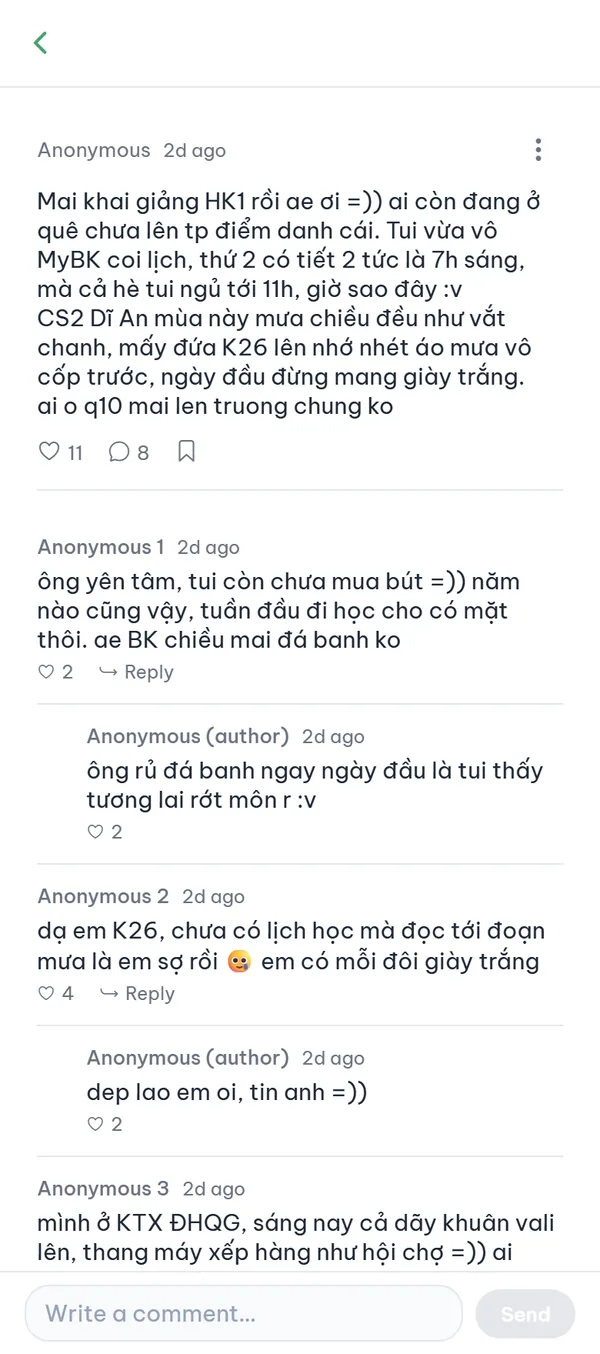
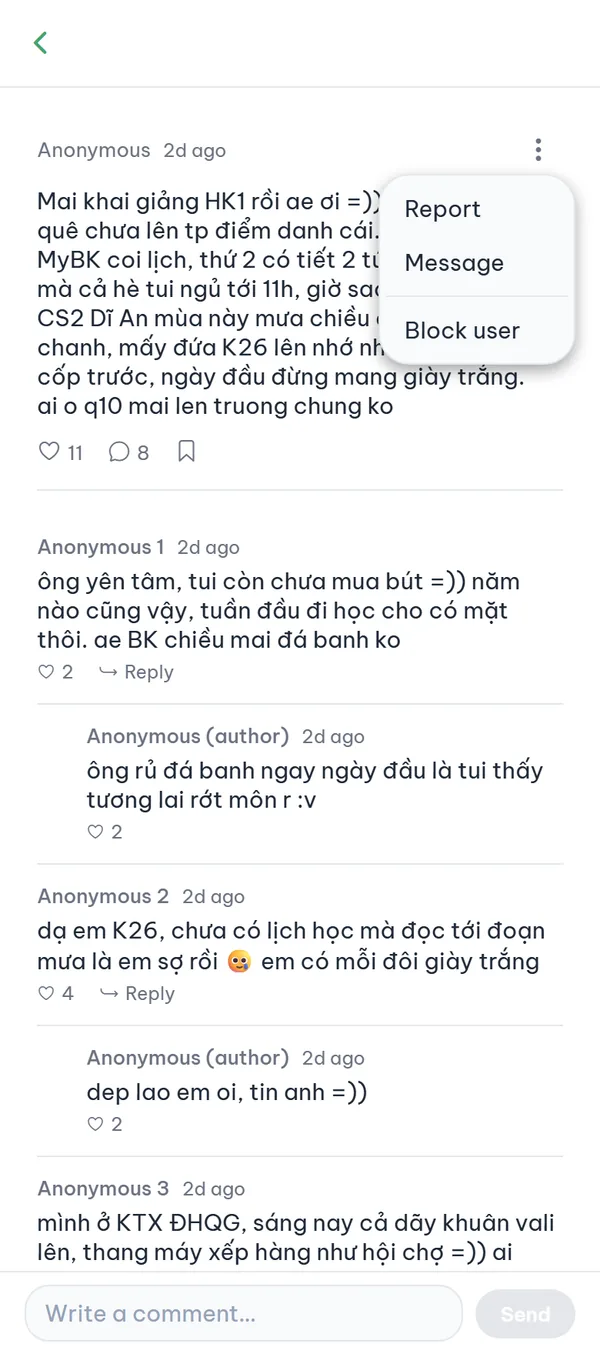
Open a post to read the full text and photos. Right below it is the row of buttons: the "Like" heart, the comment count, and the "Save" bookmark side by side; tap the heart or the bookmark again to undo it. At the bottom of the screen is "Write a comment…" — up to 1,000 characters, then tap "Send".
- Comments are anonymous Comments have no anonymity toggle — every comment goes up anonymously, and the choice exists only for posts.
- Anonymous numbers Within one post the same person always keeps the same number, like "Anonymous 1"; in another post the numbers are assigned anew.
- Author label When the writer of an anonymous post comments on it, that comment shows "Anonymous (author)".
- One level of replies Tap "Reply" and a "Replying to …" line appears above the input; you cannot reply to a reply.
5Safety
Report, block, or delete a post
Inside a post the ⋮ button sits at the end of the writer's name line, just above the body. On someone else's post the menu has "Report", "Message", and "Block user"; on your own it has only "Delete post". "Report" opens a sheet of 8 reasons, and picking "Other" requires a description before you can submit. "Message" opens a one-to-one chat with the writer.
- Eight reasons The list includes reasons such as "Spam", "Scam", "Sharing personal info", and "Other"; after you submit, the sheet simply closes with no confirmation message.
- Three reports When three different people report the same post, the service hides it automatically (the same rule covers comments, but the app currently offers the report action on posts only).
- Blocking is one-way The blocked person is not notified, and their content collapses into a single "Post from a blocked user" or "Comment from a blocked user" line.
- Deleting is final Choosing "Delete post" on your own post first asks "Delete this post? This cannot be undone." before removing it.
To undo a block, go to the "My page" tab → "Blocked users" and tap "Unblock".
Anonymity, limits, and safety
Anonymous means other students do not see who you are — it does not mean a post leaves no record. The limits below decide when you can post and which posts reach HOT.
- Anonymous to other studentsAnonymous posts and comments carry no nickname or account of the writer, not even in the data the app receives; your school verification record and the moderation log are still kept on the server.
- Posting limitsA post holds up to 5,000 characters and 5 photos, a comment up to 1,000; you must wait 30 seconds between posts and 10 seconds between comments.
- How posts reach HOTA post moves to "HOT" only if it reaches your school's like threshold (10 by default) within 24 hours of being posted; after that it no longer qualifies.
- Your school onlyYour posts appear only to verified students of your own school.
Frequently asked questions
I'm logged in but the board shows no posts.
Reading the board requires school verification. Until then you only see the "Verify your school to join the community" screen; tap "Verify school" to finish, and the posts appear afterward.
I tapped "Post" and got a red error message. Why?
Two common causes: the text contains a prohibited term, or you posted too soon after the last one (30 seconds for posts, 10 for comments). What you wrote stays in the field — edit it or wait a few seconds and tap "Post" again.
Can I edit a post I already published?
No — the app has no edit function. A post can only be removed with ⋮ → "Delete post" and written again (deleting cannot be undone); a comment can currently be neither edited nor deleted in the app.
Are comments anonymous too?
Yes, always — comments have no toggle and every one of them posts anonymously. The "Post anonymously" checkbox exists only on the post screen.
Where do posts I "Save" go?
For now "Save" only turns the bookmark on or off on that post; the app has no screen yet for browsing saved posts. To find one again, open the board it was in and scroll to it.
Why can't I like my own post?
Likes only apply to other people's posts and comments. The heart still shows on your own post, but tapping it only brings up an error message at the top of the screen.
Ready to get started?
YourCampus is free for students. Download the app and verify your school to unlock everything.