1Getting started
Where a conversation starts
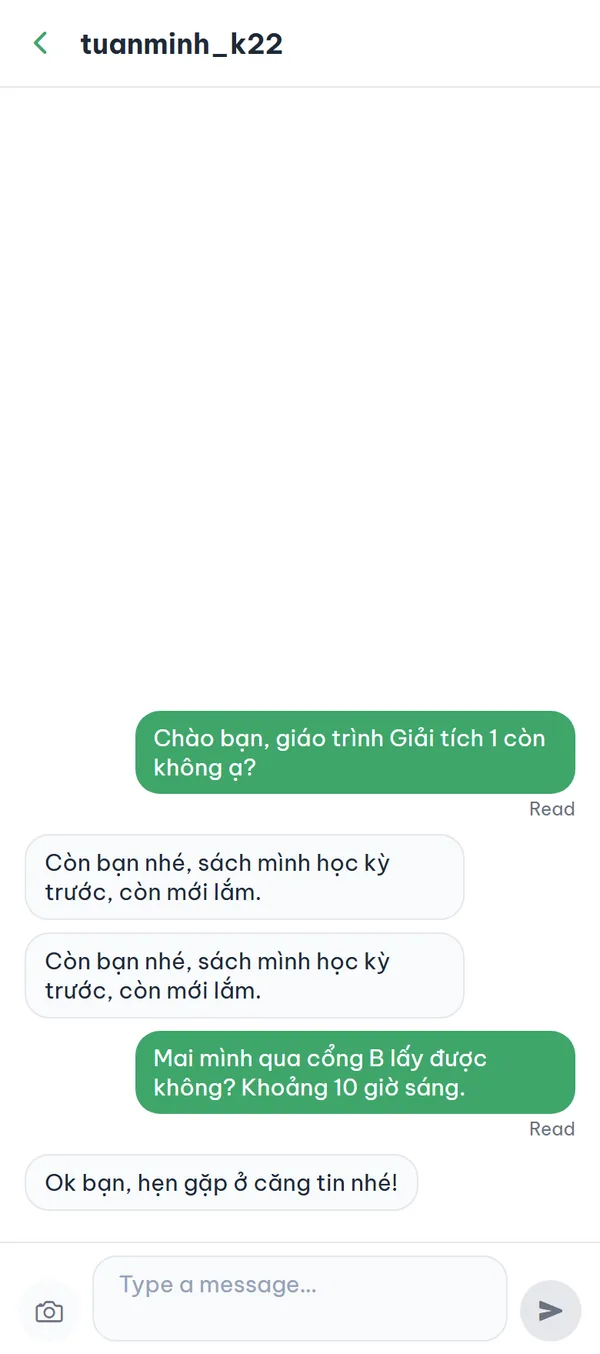
The "Messages" list has no button for creating a new conversation, and you can't search for a person and message them. Every chat opens from a specific place: someone's post, an item in "Market", or a confirmed meetup. Once it opens, the room stays in your "Messages" list.
- From a post Open someone else's post, tap ⋮ at the top right and choose "Message" — your own posts don't show it.
- From Market On the item page, tap "💬 Chat" at the bottom to ask the seller; on your own item that button is replaced by "Change status" and "Delete".
- From a meetup When the host taps "Confirm & open chat room", a group room is created automatically; participants enter with "Open chat room".
- Display name In a chat started from a post — anonymous or not — the person who opened it always appears as "Anonymous" to the other side, while a chat from Market shows the nickname. In a group room everyone else shows the same "Ẩn danh" label with no number, so you can't tell participants apart.
With the same person, no matter which post or item you start from, everything stays in one room — the app doesn't create a second one.
2Your list
Open your "Messages" list
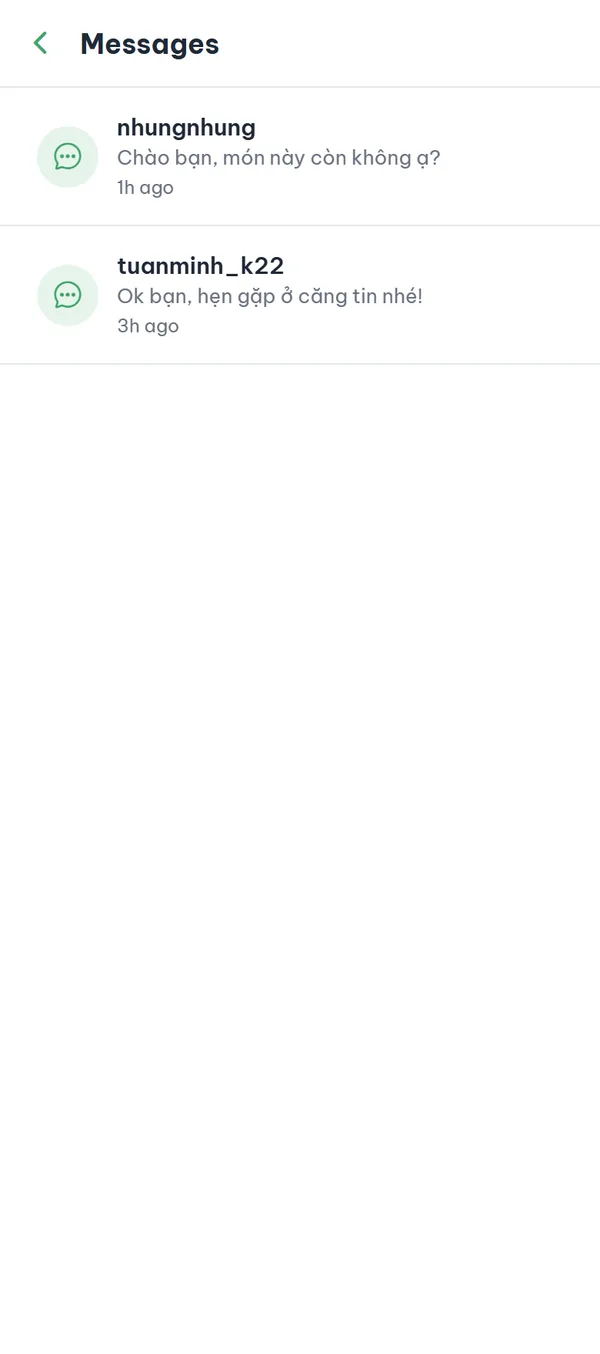
Go to the "My page" tab in the bottom bar and choose "Messages". The list puts the most recent conversation on top with a one-line preview. If you have none yet, you'll see "No conversations yet" and a "Browse the board" button.
- School verification Before you verify your school, the list is replaced by "Verify your school to start chatting" and a "Verify school" button; if you're not logged in, you'll see "Log in to use chat".
- Unread count A room with unread messages shows a number on the right; past 99 it shows "99+".
- Opening marks read Opening a room and seeing the latest message marks it read, and there's no way to set it back to unread.
- Group rooms Meetup rooms sit in the same list, named after the meetup — or by member count if the title isn't available.
3Sending
Send messages and photos
The input at the bottom reads "Type a message…", takes up to 2,000 characters, and sends with the button on the right. A room where nobody has spoken yet shows "No messages yet. Say hi!". While the room is open, new messages from the other person appear within a few seconds.
- Photos Tap the camera icon on the left to pick photos from your gallery, one at a time and up to four; tap a thumbnail to remove it before sending.
- Text or photo You can send text only, photos only, or both — with both empty the send button stays disabled.
- Three seconds apart Messages sent less than three seconds apart are rejected by the server; the room shows no error, the message simply doesn't appear — wait a moment and send again.
- Read receipts Once the other person reads it, "Read" appears under your bubble; in a group room every message — not just yours — shows a read count such as "3 read".
4Notifications
Check the "Notifications" tab
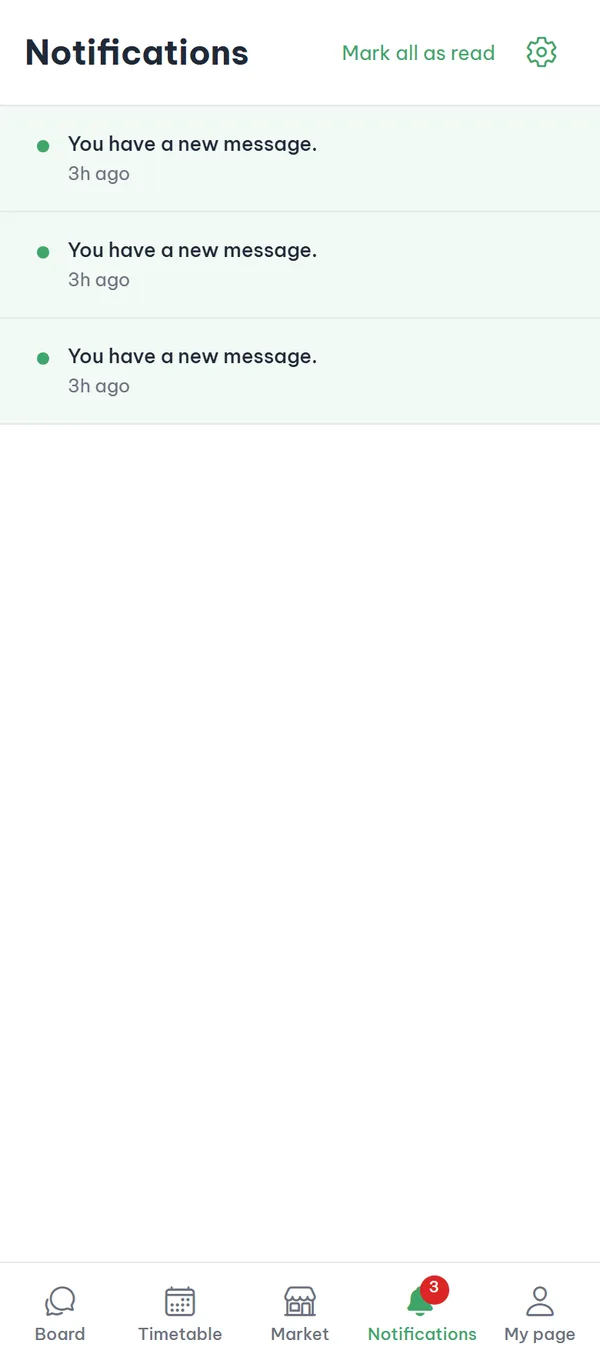
The "Notifications" tab in the bottom bar gathers everything that has happened on your account in the app. While anything is unread the tab icon shows a number, and unread rows have a dot on the left and a different background. With nothing there yet you see "No notifications yet".
- No names A notification says what happened, never who did it — for example "Someone commented on your post."
- Message alerts A new message only shows "You have a new message." — no sender and no preview, so alerts from different rooms look identical.
- Tap to open Tapping one marks it read and opens the post, chat room, or meetup it refers to; notices from the team only turn read, and class reminders arrive as device notifications only — they never appear in this list.
- Mark them all read While anything is unread, "Mark all as read" sits at the top right; once nothing is unread the button disappears.
5Settings
Choose the notifications you receive
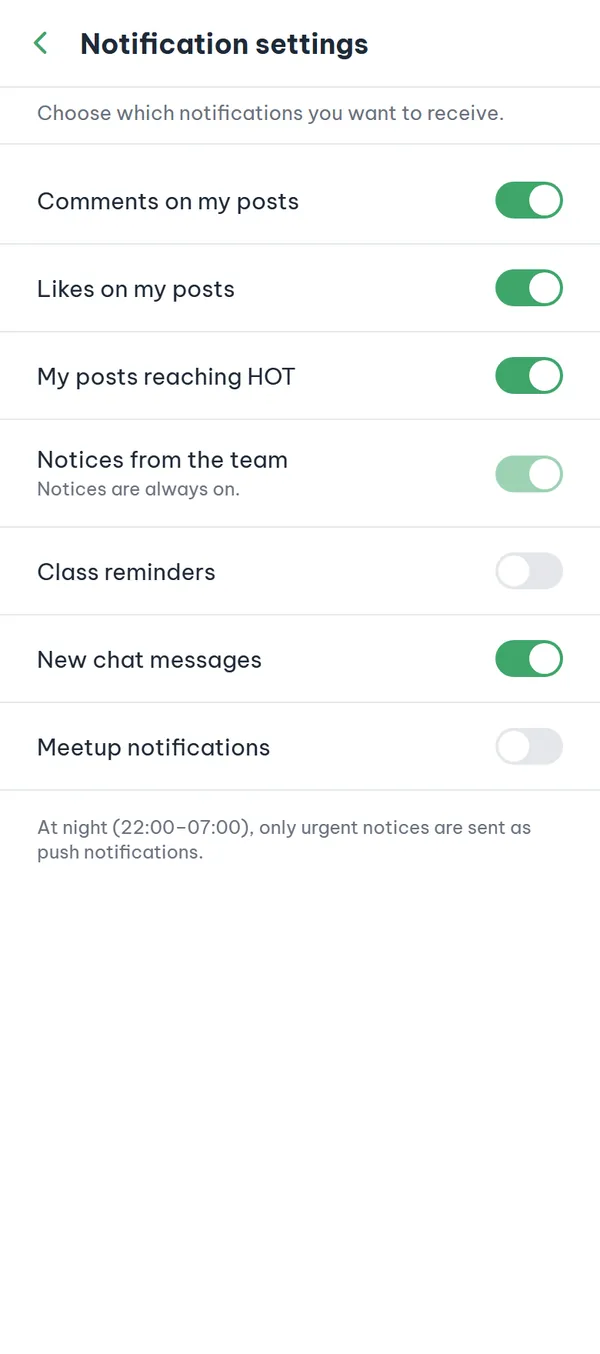
From the "Notifications" tab, tap the gear icon at the top right to open "Notification settings". There are seven switches, in order: comments, likes, HOT, notices from the team, class reminders, messages, and meetups. At the top, the "Device notification permission" card shows "Off" when permission is missing — tap "Enable in system settings" to turn it on.
- Turn types off Flip off the type you don't want, such as "New chat messages" or "Comments on my posts".
- Team notices "Notices from the team" is locked, with "Notices are always on." underneath — this type can't be turned off.
- Class reminders Off by default. Turning it on asks for device notification permission, then each class in your primary timetable alerts 10 minutes ahead: "Class starts in 10 min."
- At night The bottom of the screen states "At night (22:00–07:00), only urgent notices are sent as push notifications." — the in-app list still collects everything.
Turning a type off also stops it from being saved to the in-app list, so anything that happens while it's off can't be looked up later.
Fixed rules for messaging
The server enforces the rules below — you can't change them in the app.
- Same school onlyYou can only message students from your own school; a room won't open with someone from another campus.
- School verificationListing, reading, and sending all require a school-verified account, and the server rechecks this at every step.
- Anonymous is a display name"Anonymous" only hides your nickname from the other person; the activity stays tied to your verified account and is logged.
- Report and blockTo report, use "Report" in the ⋮ menu of a post, or the "Report" link at the top right of a market item or meetup. "Block user" only exists in a post's ⋮ menu, so to block someone you met through Market or a meetup, open a post they wrote and choose ⋮ → "Block user".
Frequently asked questions
I can't find a button to start a new conversation.
That's correct — the "Messages" list has no such button. A conversation only opens from someone's post, a market item, or a confirmed meetup; you can't look a student up by name and message them.
If I message from an anonymous post, does the other person know who I am?
In the room they only see "Anonymous", not your nickname (a room started from Market does show it). Your account is still school-verified and your activity is logged, so the team can still act on a report.
My message won't send.
A few cases are blocked by the server with no error shown in the room: two messages less than three seconds apart, or the other person having blocked you. Wait a moment and retry; if it keeps failing, a block is the likely reason. (If your account is suspended, sending isn't the only thing that stops — the chat list and the rooms won't open at all, and the school verification screen appears instead.)
How do I report or block the person I'm chatting with?
The chat room itself has no report or block button yet. To report, use "Report" in the ⋮ menu of a post, or the "Report" link at the top right of a market item or meetup. "Block user" only exists in a post's ⋮ menu, so to block someone you met through Market or a meetup, open a post they wrote and choose ⋮ → "Block user". After a block they can't send you new messages, though the old room stays in your list.
The "Meetup notifications" switch always looks off.
That's a display bug on the settings screen. Meetup notifications — a cancellation, a group room opening — still arrive normally in the "Notifications" tab, so there's nothing you need to do.
I turned on "Class reminders" but nothing goes off.
Check three things: device notification permission is on, the timetable you expect reminders from is your primary one, and the class is actually in it. The app only schedules reminders for the primary timetable, 10 minutes ahead.
Ready to get started?
YourCampus is free for students. Download the app and verify your school to unlock everything.