1Getting in
Open Meetups from My page
Meetups is not in the bottom tab bar. Open the "My page" tab and pick "Meetups" from the menu list. If you haven't verified your school yet, you get the "Verify your school to join meetups" screen instead of the list — tap "Verify school" first. Once you're in, the list shows your school's meetups — full and confirmed ones included; only cancelled ones are left out.
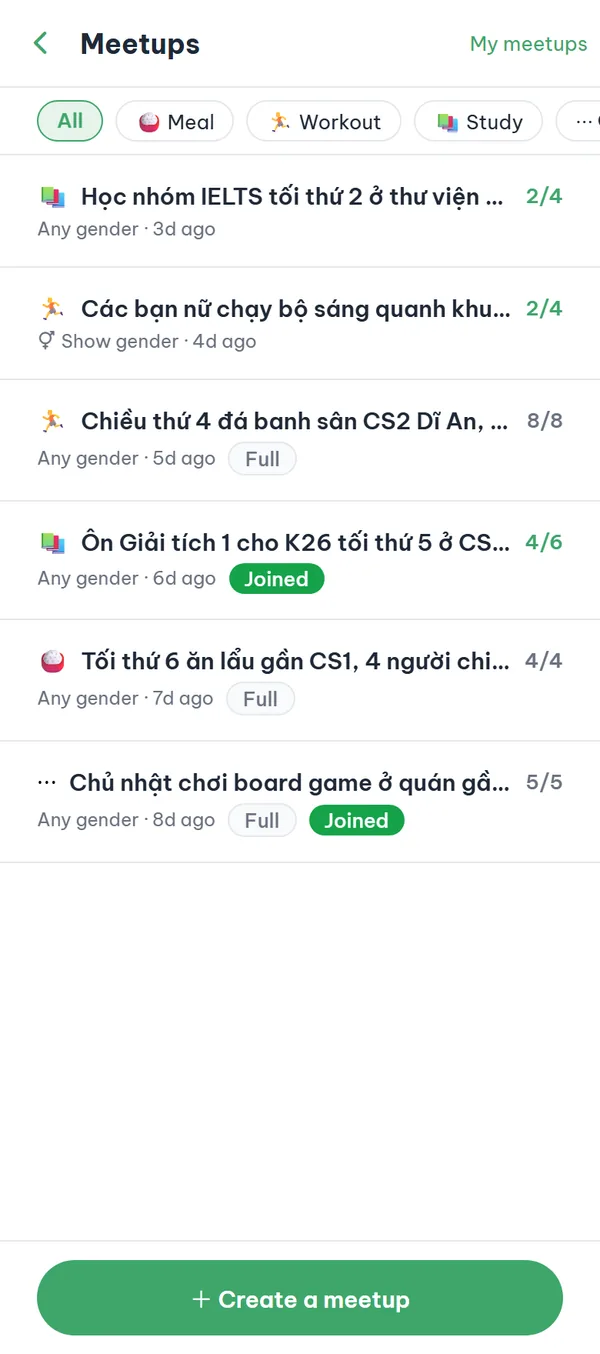
- Topic filters The filter buttons at the top of the list are "All", "🍚 Meal", "🏃 Workout", "📚 Study" and "⋯ Other"; tap the selected one again to clear the filter.
- Head count Each row shows just the digits, like "2/4"; the word "people" ("2/4 people") only appears on the detail screen.
- Status labels "Full" means there are no seats left, "Confirmed" means the host has closed it and the chat room is open, and "Joined" means you're already in that meetup.
- Your school only The list only contains meetups from your own school, and cancelled ones don't appear here.
2Creating
Post your own meetup
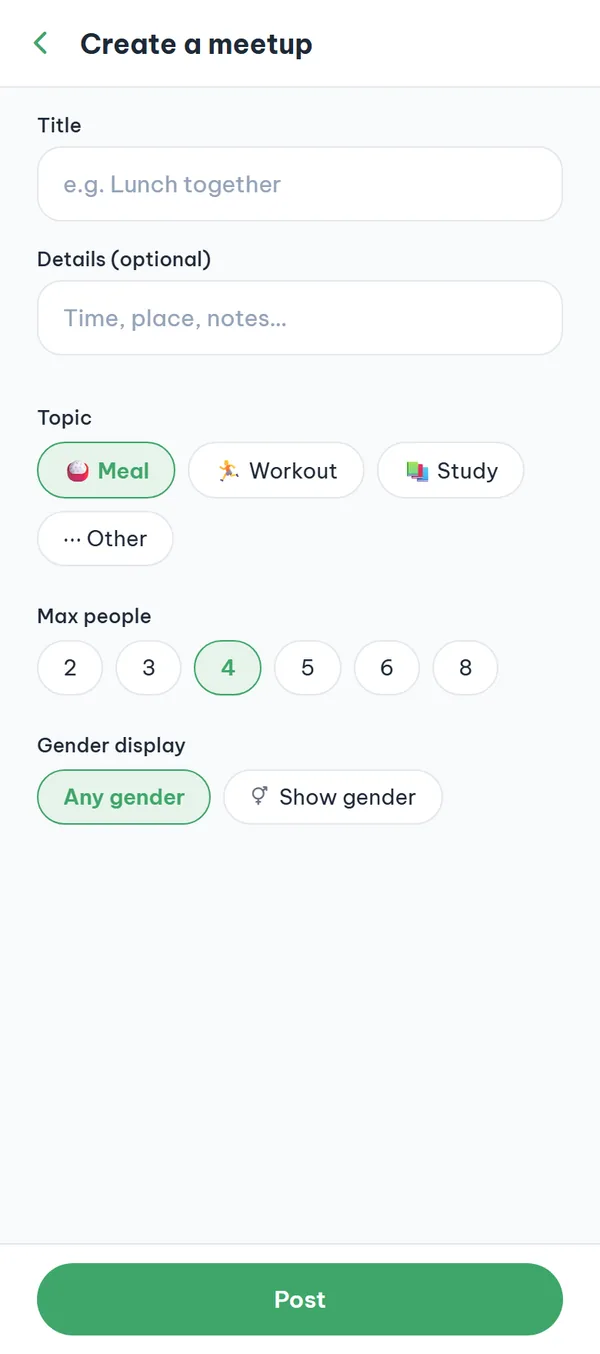
At the bottom of the list, tap "+ Create a meetup". Enter a title (required, up to 100 characters) and use "Details (optional)" for the time, place, or notes (up to 1000 characters). Pick a topic, the maximum number of people, and how gender is displayed, then tap "Post". You count as the first participant and as the host.
- Max people You choose 2, 3, 4, 5, 6, or 8 — the default is 4 and it includes you.
- Gender display The default is "Any gender"; choose "Show gender" and each participant gets a gender icon next to their row.
- Self-reported gender Pick "Show gender" and the app spells this out right under the option: "Gender is self-reported and shown only within this meetup. Only school-verified students can join."
- After posting The app opens the detail screen of the meetup you just created.
If you pick "Show gender" but your profile has no gender set, the app shows "Set your gender in your profile to join this meetup." and nothing gets posted. This screen has no shortcut to settings, so go to "My page" → "Gender" first, then come back.
3Joining
Open a meetup and tap Join
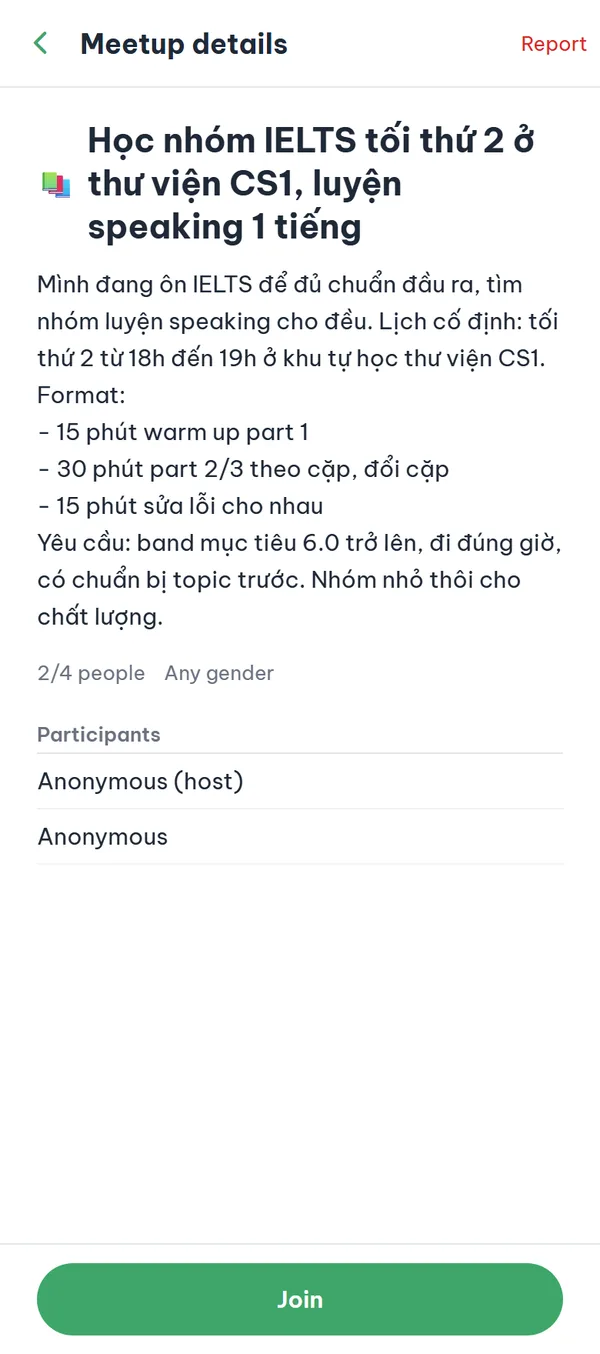
Tap a row in the list to open "Meetup details". You see the title, the details text, the head count as "2/4 people", and how gender is displayed. Tap "Join" at the bottom; the button then changes to "Leave", which you can use to drop out later.
- Participants Everyone shows as "Anonymous" with no nickname, major, or age; the host's row is marked "host" and your own row is marked "me".
- No seats left When it fills up, the button changes to "Full" and can no longer be tapped — but a seat reopens if someone leaves before the host confirms.
- Leaving You can tap "Leave" any time before the host confirms the meetup.
- Reporting The "Report" button in the top right — shown on other people's meetups — offers 8 reasons, and picking "Other" requires a written description before you can submit.
4For hosts
Confirm the meetup and open the chat
On a meetup you created, the bottom of the detail screen has "Confirm & open chat room" and "Cancel meetup" in place of the Join button, and the "Report" button in the top right is gone. A full meetup does not open a chat room by itself; you have to tap "Confirm & open chat room". The meetup then turns "Confirmed", a group chat with everyone currently joined is created, and the app takes you straight into it.
- Notifications Participants get a notification that the chat room is open, or that the meetup was cancelled if you tap "Cancel meetup".
- Hosts can't leave You have no "Leave" button; if you're not organizing it anymore, use "Cancel meetup".
- Going back to the chat After confirming, open the meetup again and tap "Open chat room", or find the room in "Messages".
- Who's in the room Only people who had joined when you confirmed can enter; anyone else just sees "This meetup is confirmed — only participants can join the chat room."
Both buttons act on the first tap — there is no confirmation step. Once a meetup is "Confirmed" or "Cancelled" there is no way back: nobody can join or leave it, and you can't confirm or cancel it again.
5Your meetups
Track the meetups you host and join
Tap "My meetups" in the top right of the meetups list. The screen has two tabs: "Hosted" (the default) and "Joined". Each row carries a status label, and tapping a row reopens that meetup's details.
- Four statuses A row is labeled "Open", "Full", "Confirmed", or "Cancelled".
- Cancelled meetups Cancelled meetups disappear from the main list but stay here with the "Cancelled" label.
- Two separate tabs Meetups you created live only under "Hosted" — they don't show up under "Joined".
- Nothing there yet An empty tab shows "No meetups yet".

Rules to keep in mind
A meetup ends with people meeting face to face, so the app locks a few rules in place.
- Your school onlyBoth browsing and joining are limited to the school you verified; you can't open a meetup from another school.
- Verification comes firstWithout school verification you can't even browse the list — you only get the "Verify your school to join meetups" screen.
- Anonymous, but on the recordOther students only see "Anonymous", but meetups stay within the report-and-moderation system and your account is still tied to your verified profile.
- Confirming is final"Confirmed" and "Cancelled" are final states — after that nobody can join, leave, confirm, or cancel.
Frequently asked questions
I can't find Meetups in the bottom tab bar.
Meetups isn't in the bottom tab bar. Open the "My page" tab and tap "Meetups" in the menu list — "Gender" sits in the same menu.
Why do I only get the school verification screen?
Meetups requires school verification just to browse, not only to join. An account that has only verified a phone number sees "Verify your school to join meetups" instead of the list; tap "Verify school", finish it, and come back. Until then, opening a meetup link or notification lands you on the same screen.
The meetup is full but there's no chat room.
Filling up only flips the status to "Full" — the chat room does not open by itself. The host has to tap "Confirm & open chat room", which turns the meetup "Confirmed" and creates the room. While you wait, a seat reopens if someone taps "Leave".
Do other participants see who I am?
Inside a meetup everyone appears as "Anonymous" — no nickname, major, or age, just the "host" and "me" markers and a gender icon when the meetup uses "Show gender". That anonymity is toward other students: your account is still tied to your school-verified profile and to the records needed to handle reports.
What if I switch my gender back to "Not disclosed"?
Meetups you already joined keep the gender recorded at the moment you joined, so the icon stays there. You just can't create or join a new "Show gender" meetup until you set your gender again under "My page" → "Gender".
Ready to get started?
YourCampus is free for students. Download the app and verify your school to unlock everything.