1Getting in
Open the "Market" tab and browse
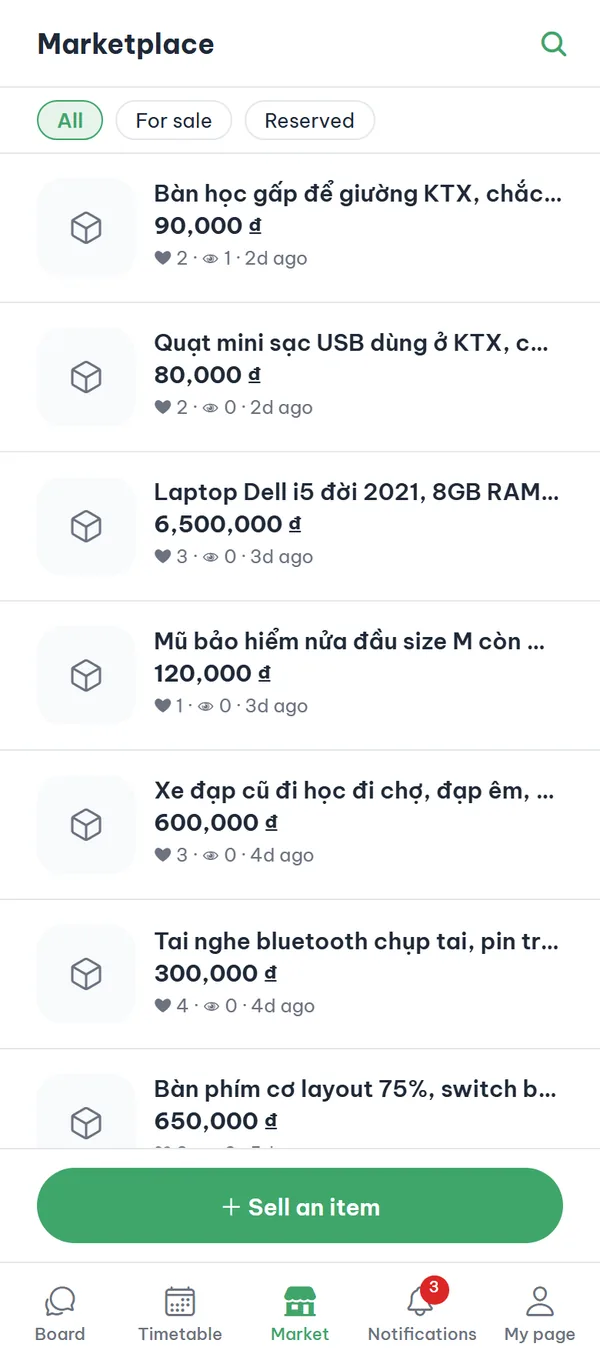
Tap the "Market" tab in the bottom bar. If you aren't logged in, you only see "Log in to use the marketplace"; if you are logged in but not verified yet, you see "Verify your school to use the marketplace" with a "Verify school" button — the list itself doesn't load. Once verified, you see items posted by students at your school.
- Status filters The three chips above the list are "All", "For sale" and "Reserved" — items marked "Sold" don't appear in the list.
- What's on a card Each card shows a photo, title, price (0 ₫ shows as "Free"), save and view counts, and how long ago it was posted; only "Reserved" items carry a status badge.
- Scroll for more The list loads 20 items at a time and keeps loading as you scroll down.
- Empty list If nobody at your school has posted yet, you see "Be the first to list an item!".
2Search
Find a specific item by keyword
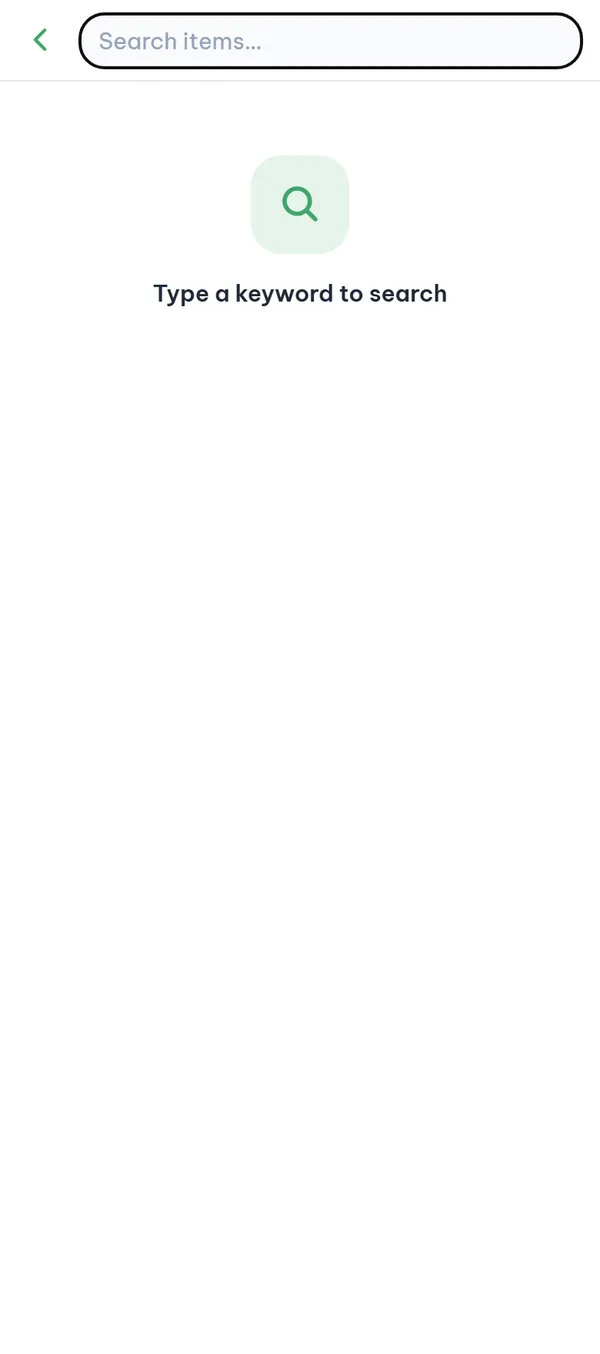
Tap the magnifier at the top right to open the search screen. Before you type, it shows "Type a keyword to search". Enter a keyword and press the search key on your keyboard — typing alone doesn't run the search. If nothing matches, you see "No results".
- Accents optional Typing "may tinh" still finds "máy tính" — search ignores diacritics.
- Sold items included Search results can include items marked "Sold", even though the main list hides them.
- Still school-scoped Search only covers your own school; items from other schools never show up.
3Listing
Put your own item up for sale
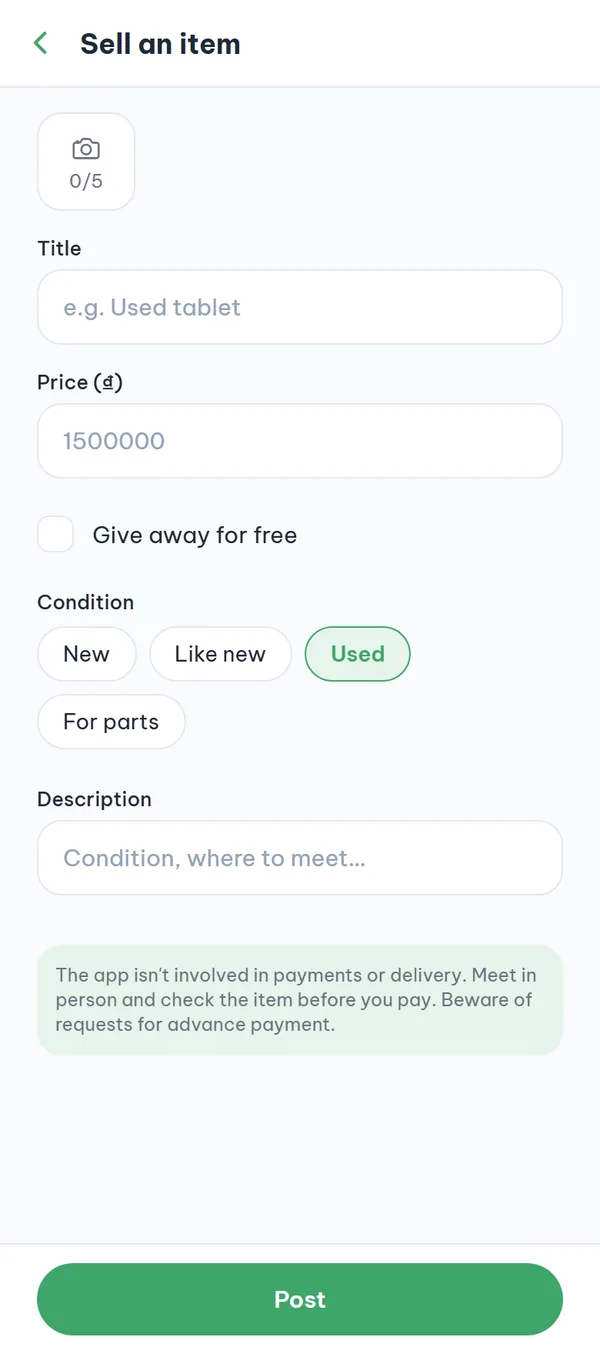
At the bottom of the marketplace screen, tap "+ Sell an item" to open the "Sell an item" form. Add photos, fill in "Title" and "Price (₫)", pick a "Condition", write a "Description", read the safety notice at the bottom, then tap "Post". The app takes you straight to the detail page of the item you just posted.
- Photos one at a time The "Attach photo" box picks one photo per tap, up to 5 — tap it five times to fill all slots, and tap a photo you added to remove it.
- Price or free Type the price as digits; turning on "Give away for free" hides the price field and sets the price to 0 ₫.
- Condition and description Pick one of the four chips — "New", "Like new", "Used", "For parts" — then write the description (up to 2,000 characters; titles are capped at 100).
- If posting fails A red message just above the "Post" button explains why: you haven't agreed to the rules, the wording is prohibited, you're posting too fast, or you have too many active listings.
A posted listing can't be edited — there's no edit screen. To change the title, price, or photos you have to "Delete" it and post again, and deleting can't be undone. Check everything before you tap "Post".
4Save and chat
Save an item and message the seller
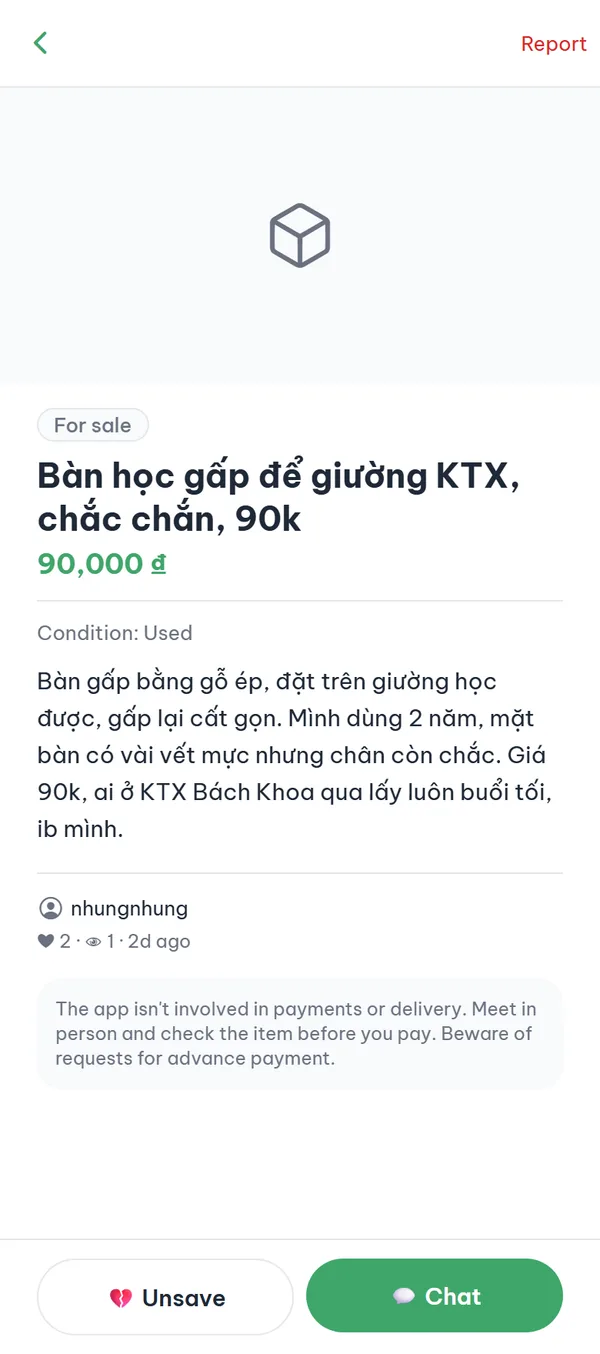
Tap a card to open the detail page: swipe through the photos and read the price, "Condition", description, the seller's nickname, and the save and view counts. The two buttons at the bottom are "❤ Save" (which becomes "💔 Unsave" once saved) and "💬 Chat", which opens a one-to-one conversation with the seller. At the top of that chat you see "Conversation started from …" with the item name.
- Send an actual message Just opening the conversation and leaving sends the seller no notification — they only find out once you send a message.
- Reopening a chat The marketplace has no link to your conversations — go to the "My page" tab and open "Messages".
- No saved-items screen There's no screen that lists what you saved yet; you only see the saved state when you reopen the item's detail page.
- If chat is refused If either side has blocked the other, a red message above the buttons says "You can't message this person." — unblock from "My page" > "Blocked users".
5Manage
Change the status or delete your listing
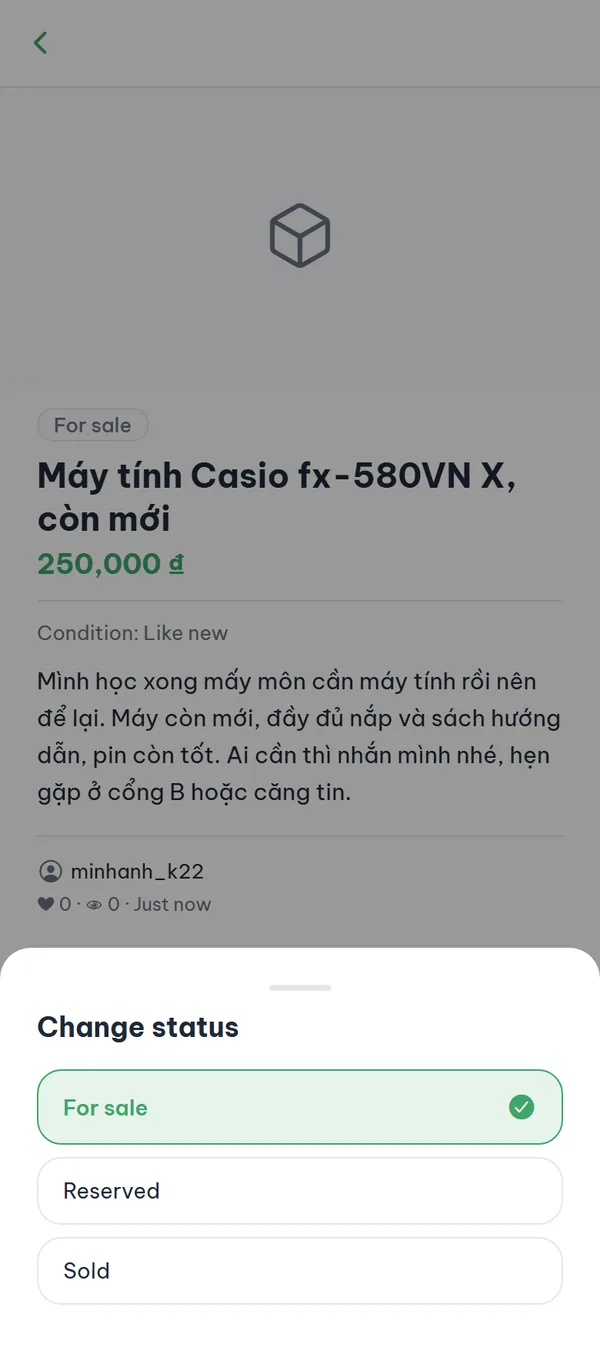
When you open a listing you posted, the two bottom buttons become "Change status" and "Delete", and the "Report" button at the top disappears. Tap "Change status" and a sheet slides up with three choices and a check mark on the current one; picking one applies it right away.
- Three statuses "For sale", "Reserved" and "Sold" — only the seller can change them.
- Reversible There's no fixed order: you can move a "Sold" item back to "For sale" if the buyer changes their mind.
- Deleting is permanent "Delete" asks "Delete this item? This can't be undone."; after you confirm, anyone opening the old link just sees "This item was deleted.".
When a deal is done, switch to "Sold" instead of deleting: the listing drops out of the list so nobody keeps asking, but you keep the content and the past conversations.
A few things to keep in mind when you trade
The marketplace only hosts the listings; the rest is between you and the other student. These are the limits and safeguards you'll run into.
- No payment inside the appBoth the sell form and the detail page state: "The app isn't involved in payments or delivery. Meet in person and check the item before you pay. Beware of requests for advance payment." There is no wallet, fee, or guarantee in the app.
- Same school onlyThe list, search, and detail pages are all scoped to your school. Opening a link to another school's item returns "You can't access another school's board.".
- Listing limitsUp to 5 photos per listing; a 60-second cooldown between posts (an attempt that fails on prohibited wording, the listing limit, or a bad image still uses it up); and at most 30 listings that are for sale or reserved at the same time.
- Reporting and blockingOn someone else's listing, tap "Report" at the top right, choose a reason ("Other" requires a description), then "Submit report". Once three different people report it, the item is hidden automatically. Blocking a seller isn't available in the marketplace yet — use "Report" instead. People you already blocked can be unblocked from "My page" > "Blocked users".
Frequently asked questions
Why do I only see the school verification screen instead of the list?
The marketplace requires school verification just to browse, so before you verify you only get "Verify your school to use the marketplace" and the "Verify school" button. Note that a suspended account lands on the same screen even though the real reason isn't verification — if you're sure you already verified, contact support.
I got the price wrong in my listing — where do I edit it?
You can't — there's no edit screen for a listing. The only way is to open your item, tap "Delete", confirm, and post it again from scratch; the save and view counts you've built up are lost. Remember the 60-second cooldown between posts.
Posting fails with "You must agree to the community rules before posting."
The rules sheet doesn't appear inside the marketplace. Go to the board tab and actually submit a post, or post a comment — the "Community rules" sheet only comes up when the submission is refused, not when you open the composer. Once you agree, that post or comment is sent again automatically; then return to the marketplace and post as usual. "💬 Chat" and "Report" need the same agreement.
After a failed post, tapping "Post" again right away says "You're posting too fast. Please try again later."
The 60-second cooldown is set after the account checks (school verification, rules agreement) but before the remaining ones — so an attempt that fails on prohibited wording, too many active listings, or a bad image still makes you wait the full 60 seconds. If you were blocked only because you hadn't agreed to the rules, no cooldown is used and you can post right after agreeing.
I tapped "💬 Chat" but the seller never replied.
If you only opened the conversation and left, the seller got no notification — one is created only when an actual message is sent. Go to "My page" > "Messages", reopen the thread (headed "Conversation started from …") and send a concrete question.
An item I saved yesterday has disappeared from the list.
Three possibilities: the seller switched it to "Sold" (it leaves the list but can still show in search), the seller used "Delete" (reopening shows "This item was deleted."), or it was hidden after reports ("This item is hidden due to reports or moderation."). There's no saved-items screen yet, so search the item's name to check.
Ready to get started?
YourCampus is free for students. Download the app and verify your school to unlock everything.