1Getting in
Open "Points wallet" from "My page"
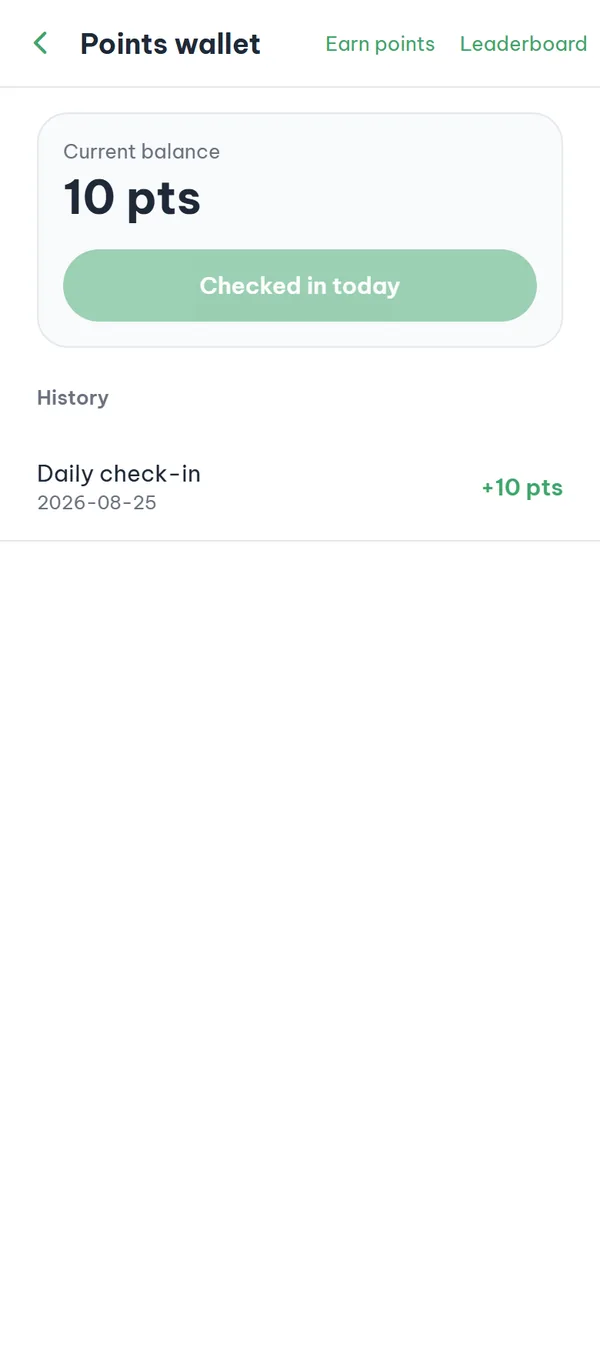
On the bottom tab bar, open "My page" and tap the "Points wallet" row. That is the only way into the points area. The screen opens with a "Current balance" card on top and a "History" list below it.
- School verification required If your school isn't verified yet, the wallet is replaced by a screen holding only "Verify your school to use points" and a "Verify school" button — no balance, no check-in button, no history, no top-right links. If you're not logged in, that screen reads "Log in to earn points" with a "Log in" button.
- Balance The number under "Current balance" is your balance right now — the value the server has recorded for you. If a red message appears there instead, that's a connection error, not a balance of zero.
- History rows Each row shows the reason ("Daily check-in", "Ad reward", "Event", "Admin adjustment", and so on), the date in Vietnam time, and the points added or subtracted.
- Scroll for more The list is newest first and loads 20 more rows each time you scroll down; when there is nothing yet it shows "No transactions yet".
2Daily
Tap "Check in" once a day
The check-in button sits inside the balance card, and the button itself shows how many points today's check-in gives. One tap adds them to your balance right away and puts a new "Daily check-in" row at the top of "History". The button then changes to "Checked in today" and greys out.
- Amount on the button The amount per check-in is set on the server, so read the number currently on the button rather than assuming a fixed amount.
- Once per day Only one check-in counts per calendar day in Vietnam time; tapping again the same day adds nothing.
- When the button is dimmed The button also reads "Checked in today" and stays dimmed while the wallet is loading or failed to load. So if the balance area shows a red message, try again instead of assuming you already checked in.
The button unlocks again after midnight Vietnam time. There's no streak bonus, so missing a day costs you nothing.
3Earn more
Collect points on the "Earn points" screen
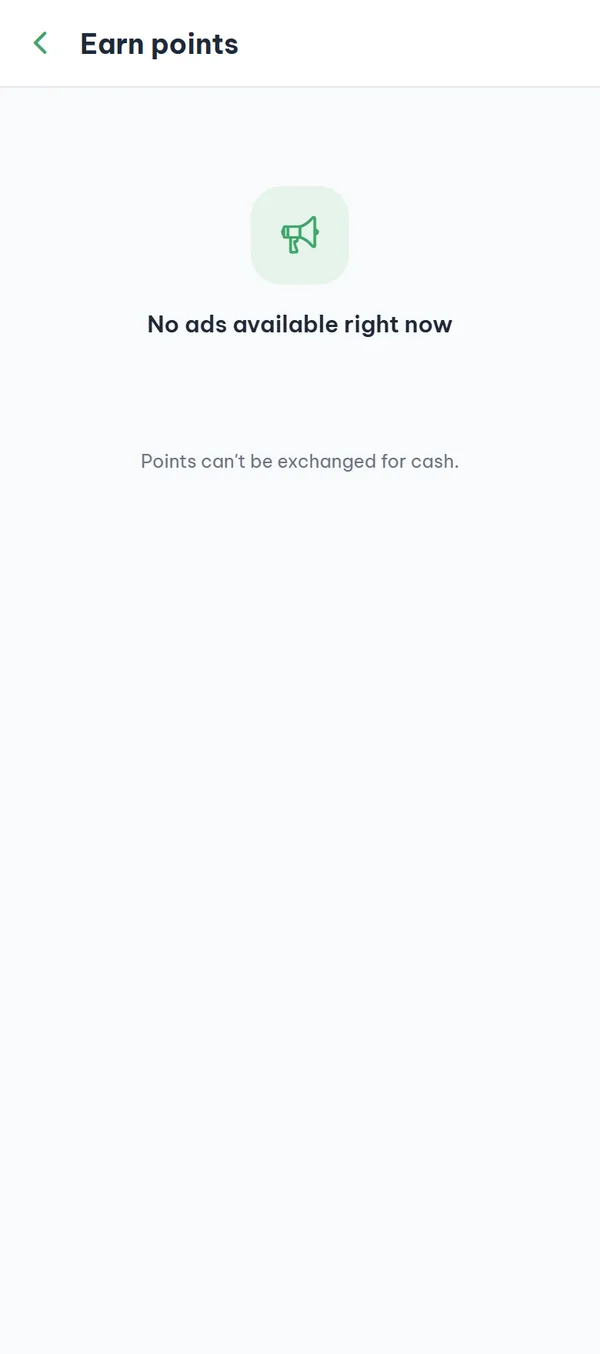
The "Earn points" link is in the top right of the wallet. Each card in the list shows the advertiser on the left and the points you get on the right. Tap "Start" to open the link in a browser outside the app. Do what the ad asks, come back, and tap "Confirm completion" on that same card — the points land in your wallet right away.
- One time per ad Once the points are paid out, the card switches to a "Received" state and you can't take part again.
- The list can be empty Only ads that are running and meant for your school appear here; if there are none, the screen shows "No ads available right now".
- Banners elsewhere Banner ads on other screens don't pay points — you only earn points from the cards in "Earn points".
- Notice at the bottom The bottom of the list always carries the line "Points can't be exchanged for cash."
If you start too many ads within an hour, the screen shows "Too many attempts. Please try again later." and you can't collect points for a while — wait a bit and come back.
4Ranking
See where you rank at your school
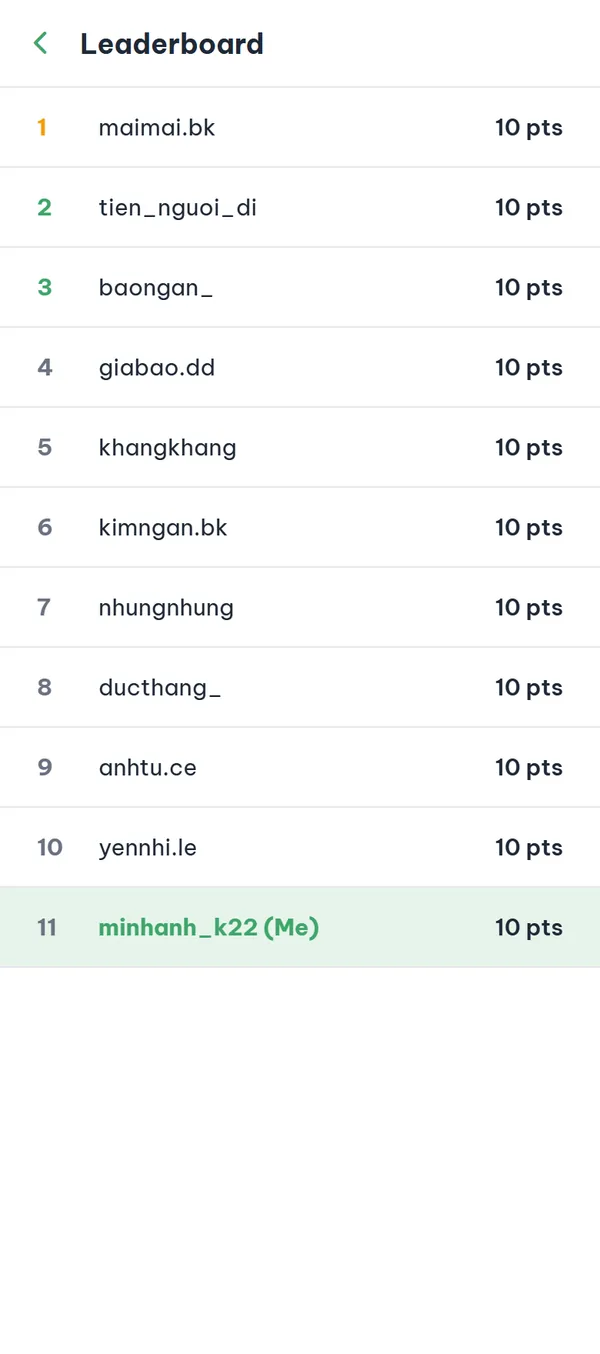
The "Leaderboard" link sits in the top right of the wallet, next to "Earn points". The list includes only students from your own school, and each row shows the rank, nickname, and points. Your own row is highlighted and shows "Me" after the nickname.
- Your school only You can't switch to another school — the list always follows the school on your account.
- By current balance Ranking uses the points you currently hold and doesn't reset weekly; on a tie, whoever reached that total first ranks higher.
- Your row at the bottom If you have points but fall outside the listed ranks, your own row is still pinned to the bottom of the screen.
- When it is empty If nobody at your school has points yet, the screen just shows "No rankings yet".
A few things to know about points
Points exist only inside the YourCampus app. The rules below tell you what you can see and do with the points you collect.
- No cash payoutThe app has no way to convert points into money or move them to another account, and the "Earn points" screen states this at the bottom.
- School verification firstYou can see the balance, history, ad list, and leaderboard only after your school is verified.
- The leaderboard shows nicknames onlyRanking rows carry only the rank, the nickname, and the points — no real names, phone numbers, or majors.
- History is never rewrittenThe app never edits or deletes a row that's already there; a correction comes in as a new row that adds or subtracts the same amount, and your balance never drops below zero.
Frequently asked questions
Why don't I see a balance when I open the wallet?
You need a verified school to use the points area. If you're not logged in, the wallet shows "Log in to earn points"; if you're logged in but not verified, it shows "Verify your school to use points" — tap "Verify school", finish that step, and come back to the wallet.
The button says "Checked in today" but I haven't checked in.
The button lights up only when the server says today's check-in is still available. If the balance area shows a red message, that's a connection problem — leave the wallet, open it again, and retry.
I left the "Earn points" screen and came back — the button went back to "Start". Did I lose the points?
Nothing is lost. The app only remembers that step while you stay on the "Earn points" screen, so "Confirm completion" stays there while you're off in the browser; the button returns to "Start" only after you leave the screen and come back. Tap "Start" again — the server reuses the same participation, the link opens once more, and "Confirm completion" appears so you can collect.
I tapped "Start" and nothing happened.
Usually that ad already paid you. In that case the link doesn't open, the list refreshes itself, and the card switches to a "Received" state. If the ad has ended or been taken down you get "Ad not found." The message "Ad session not found. Please start over." comes from "Confirm completion" instead; when it appears the button returns to "Start", so just take part again from the beginning.
I can't find myself on the leaderboard.
If you have never received points, you are not in the table at all — not even in the row pinned at the bottom. One check-in puts you there. The table also covers only students from your own school, so friends at other schools will not be in the same list.
What are points for?
Points are a reward balance that stays inside the app: you collect them to climb your school leaderboard and to keep a record of what you have earned. The app doesn't convert points to cash and won't let you transfer them to anyone else.
Ready to get started?
YourCampus is free for students. Download the app and verify your school to unlock everything.