1Getting started
Create your first timetable
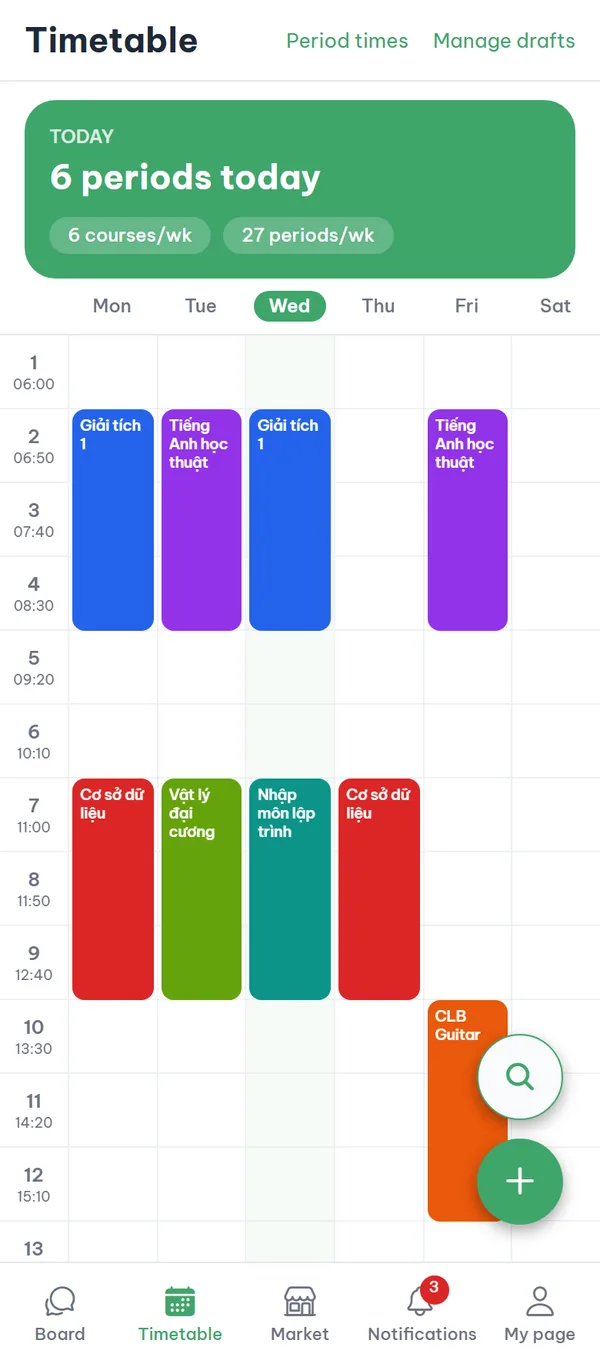
The app opens on the community board, so tap the "Timetable" tab in the bottom bar. Before you save anything, the screen reads "No timetable yet" — tap "Create timetable" and the app makes one named "My timetable" for the current term. The "Today" card and the two round buttons in the bottom-right corner appear at the same time, while the day × period grid shows up once you add your first entry.
- Second tab The timetable is the second tab in the bottom bar, not the screen the app opens on.
- Period axis The left column lists period numbers with their times, and today's column is highlighted.
- Mon through Sat The grid shows Mon–Sat; a "Sun" column appears only when you have a Sunday entry.
- School needed first The create button appears only when your account is tied to a school and that school has a current term.
Right after creating it the grid isn't there yet — the screen stays in the empty state with an "Add entry" button. Add one class and the grid appears.
2Course search
Add a course from your school's data
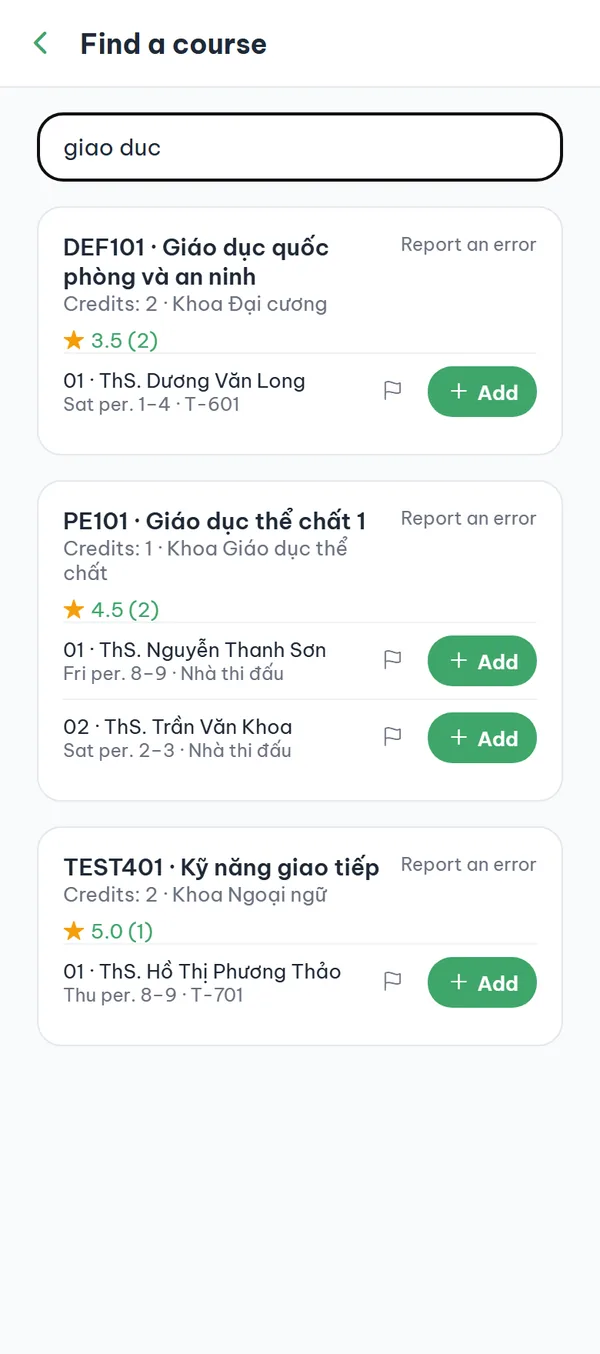
The magnifier button in the bottom-right corner opens "Find a course". Type a name or course code; it still matches when you leave the accents off, and lecturer or faculty names work too. Leave the box empty and the app lists every course in the term. Each result card shows the code, name, credits and faculty, and each section below it shows the lecturer, day/period and room. Tap "Add" on the section you want and the app saves it, then returns to the grid.
- No accents needed Typing without accents still matches, so "toan" finds "Toán cao cấp".
- Pick the right section Check the lecturer, the "Mon, periods 1–3" line and the room on each section before tapping "Add".
- Times come from the school The day, period, room and lecturer come from your school's data, and the app doesn't let you edit them.
- Report an error If something is wrong, tap "Report an error" on the course card or the flag icon on the section row, pick one of five reasons and tap "Submit report".
3Manual entry
Type in an entry the data doesn't have
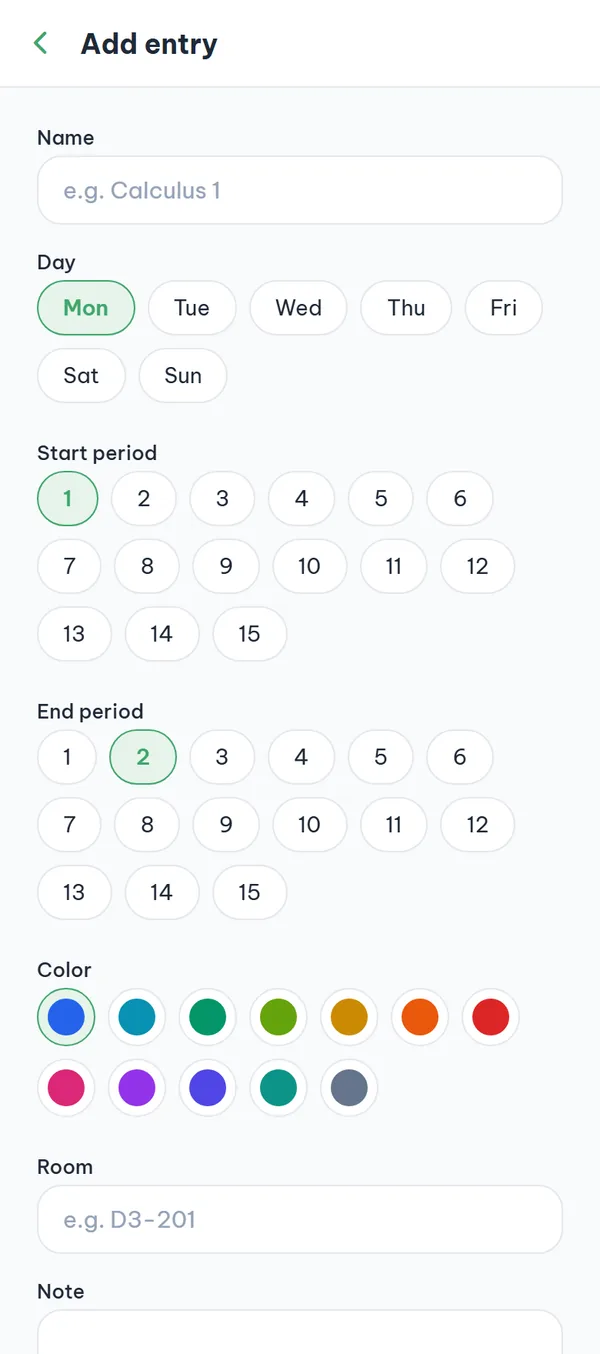
The "+" button in the bottom-right corner opens "Add entry". Fill in "Name", pick a day, pick a "Start period" and "End period" between 1 and 15, choose one of 12 colors, and add "Room" and "Note" if you want. Tap "Save" and the app returns to the grid with your block on it; it merges consecutive periods into a single block.
- Name is required Leave "Name" empty and the "Save" button stays greyed out.
- One day at a time Each save creates one day and one period range, so a class that meets twice a week needs two entries.
- Color and room The color tells blocks apart on the grid, while "Room" and "Note" are optional.
- Editing means delete and re-add Tapping a block opens "Edit entry" with empty fields, and "Delete" is the only action that touches the existing entry — "Save" here adds another new entry instead of editing it. To change something, delete it and add it again.
4Drafts
Compare several registration plans
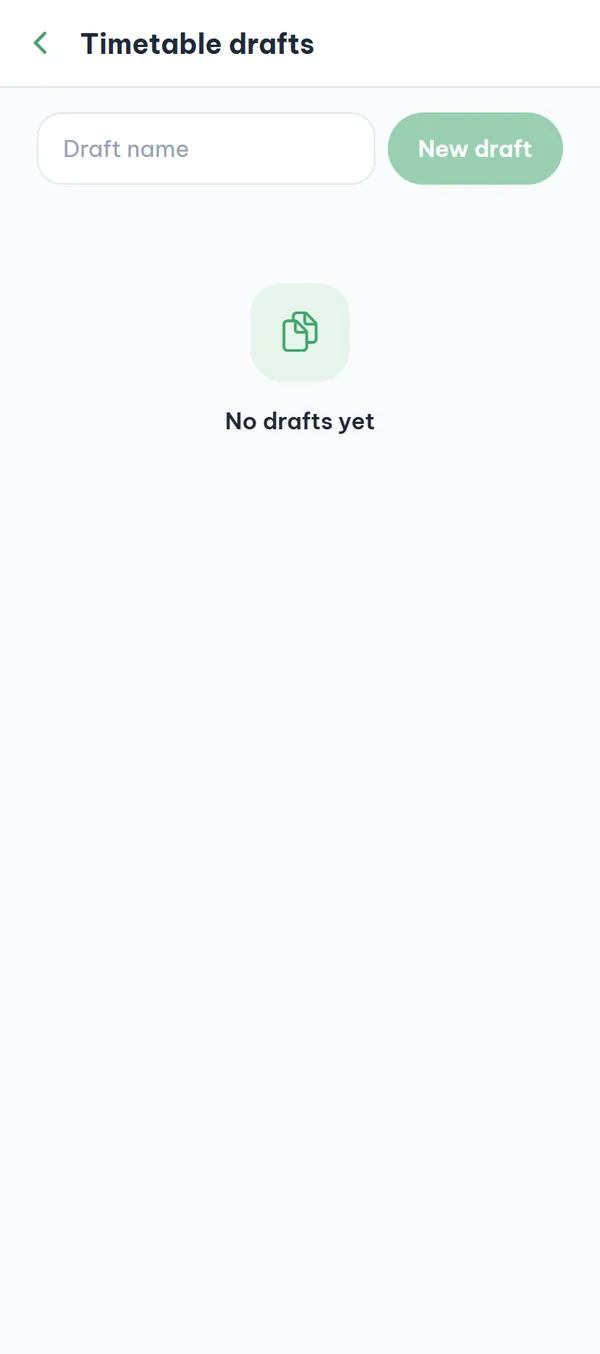
In the top-right corner of the timetable screen, tap "Manage drafts" to open the list. Type a name in the field at the top and tap "New draft" to get another timetable in the same term, up to 10 of them. The draft carrying the "Primary" badge is the one the grid and the class reminders use, so to look at another plan you tap "Set as primary" on it.
- Ten per term Try to create an eleventh and the app refuses, saying you've reached the term's maximum.
- Only the primary is shown The grid always renders the "Primary" draft, and the list has no separate view action for the others.
- Overlaps aren't blocked Two overlapping classes still save; the app only warns with a "Conflicts: 2" badge next to the screen title and a red dashed border around the blocks.
"Delete" on a draft takes effect immediately, with no confirmation, and every entry inside it goes with it.
5Period times
Match your school's period times
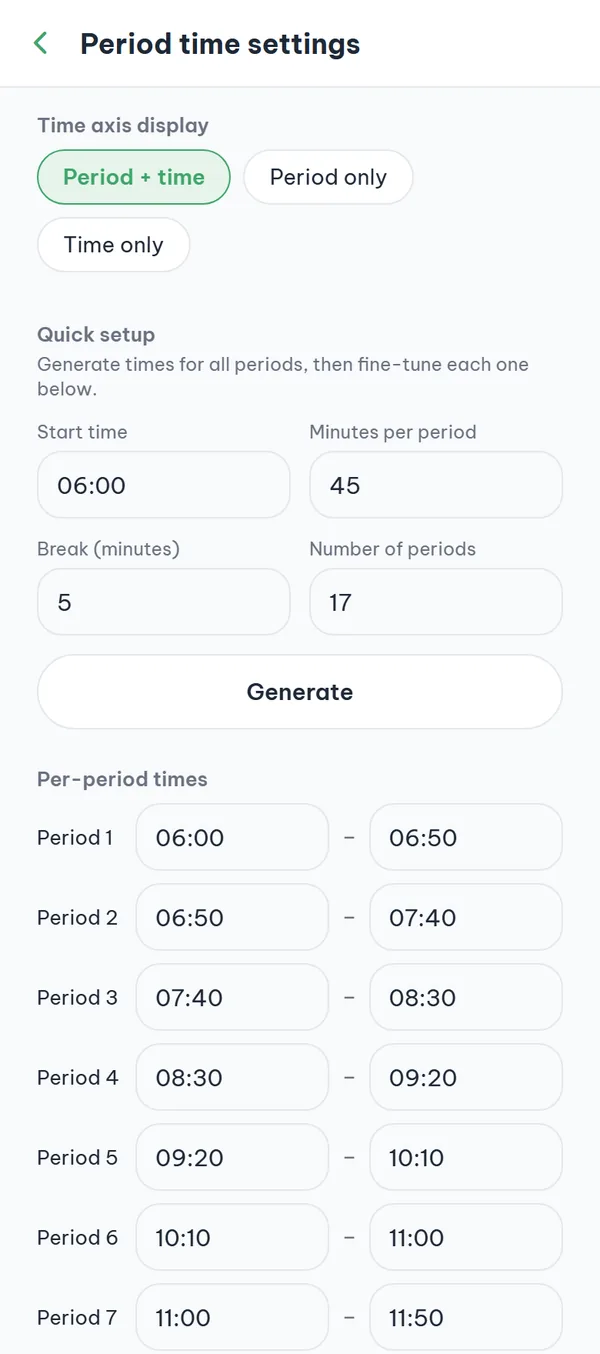
Schools set period times differently, so when the time axis doesn't match, open "Period times" in the top-right corner of the timetable screen. Under "Quick setup", enter "Start time", "Minutes per period", "Break (minutes)" and "Number of periods", then tap "Generate" to fill them all in and fix the uneven ones under "Per-period times". Tap "Save" and you're done; the times are stored on your account, so they follow you to another device.
- Three axis styles "Period + time", "Period only" and "Time only" save the moment you tap one; the default is "Period + time".
- Quick setup "Generate" fills in the times for every period from the four values you just entered.
- Per-period tweaks Fix uneven periods — a lunch gap, an afternoon session — by hand in HH:MM.
- Reset to default "Reset to default" clears every time you edited and goes back to your school's period times.
Limits worth knowing
A few fixed numbers in the timetable, so you don't have to find them by trial and error.
- Ten drafts per termAnything beyond that is refused, so delete an old draft if you need room.
- Periods 1–15 when typing by handThe "Add entry" screen only offers periods 1 through 15.
- Period times can't overlapIf two periods overlap or a start time falls after its end time, the app refuses to save and shows an error.
- Class reminders 10 minutes aheadTurn on "Class reminders" under "Notification settings" in the "My page" tab; it's off by default and only covers entries in your primary timetable — the draft with the "Primary" badge.
Frequently asked questions
I don't see the "Create timetable" button.
The button only appears when your account is tied to a school and that school has a current term. If the screen shows "No timetable yet" with no button at all, finish your school verification first; if you already did, your school has no term data yet.
What if the search never finds my course?
Not every school has course data, and courses from another term don't show up. When the screen says "No courses found", tap "Add manually" and type the class in yourself.
How do I change the name or the periods of an entry I added?
The "Edit entry" screen opens with empty fields, and "Save" there adds another new entry instead of editing the old one — so delete the old block and add it again with the new details. For entries added from search, the day, period and room come from your school's data and the app doesn't let you edit them; if they're wrong, send a "Report an error" instead.
Does the grid tell me when a class I added is cancelled?
Yes. The block stays on the grid but fades and gets a "Cancelled" label. If the class isn't cancelled but its room or lecturer changed, the block doesn't fade and shows "• Changed" instead — the two labels never appear together. The app doesn't remove it for you, so delete the block yourself once you drop the class.
Can I look at plan B without losing plan A?
Yes. Go to "Manage drafts" and tap "Set as primary" on plan B, and the grid switches to it right away. You can flip back and forth any time and both drafts stay intact.
The period times on the grid don't match my school.
The time axis uses default times until you change them. Open "Period times", generate them once under "Quick setup" and fix the ones that are off, or switch the axis to "Period only" if the period numbers are all you need.
Ready to get started?
YourCampus is free for students. Download the app and verify your school to unlock everything.