1Getting in
Open reviews from the course search screen
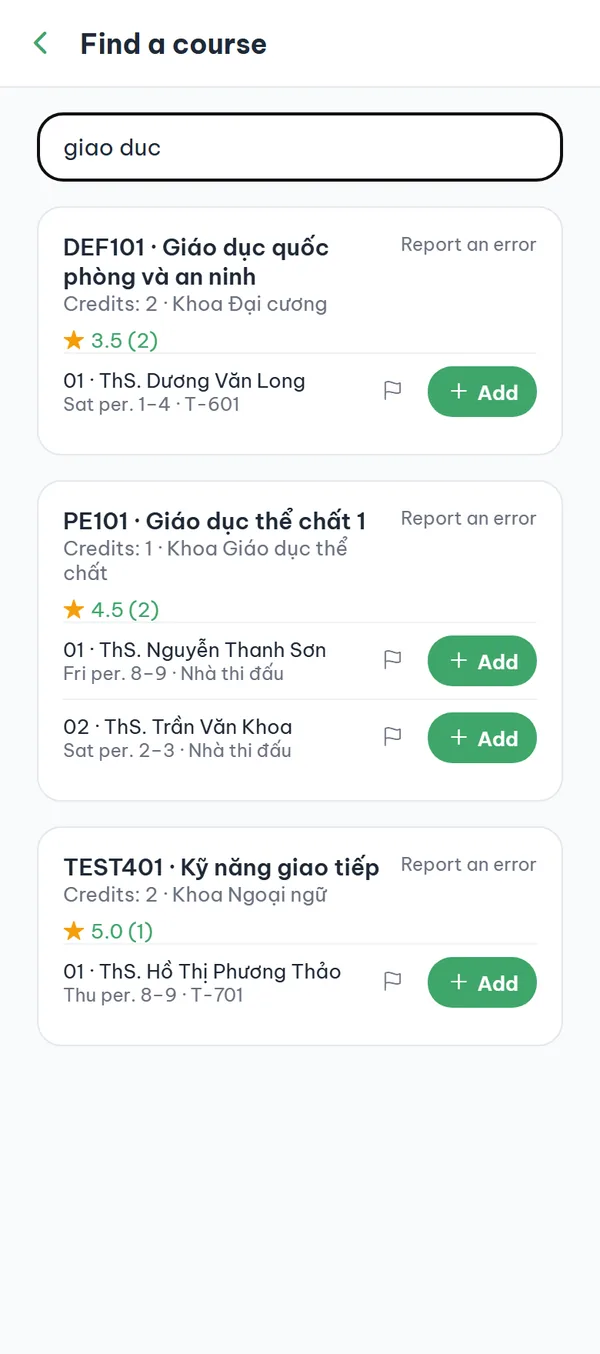
In the timetable tab, tap the magnifier button at the bottom right to open "Find a course". Type a course name or code in the search box and look at the result cards. Each card shows a star with the average rating and the number of reviews — tap it to open that course's review screen.
- Search box "Search by name or course code" matches even when you type without diacritics, and it also matches lecturer names and faculties.
- Star on the card Tap the rating to open the reviews; on a course nobody has reviewed yet, that spot shows "Write a review" and leads to the same screen.
- Adding to your timetable On the same card, the "Add" button on a section row puts the course into your timetable and takes you straight back to the timetable screen — tap the magnifier again to keep browsing.
- The only entry point There's no separate reviews tab in the app — every path to reviews goes through a course search result card.
No magnifier button? It appears only when you're signed in, have at least one timetable, and your school has a term in the app.
2Reading
Read the summary and the anonymous reviews
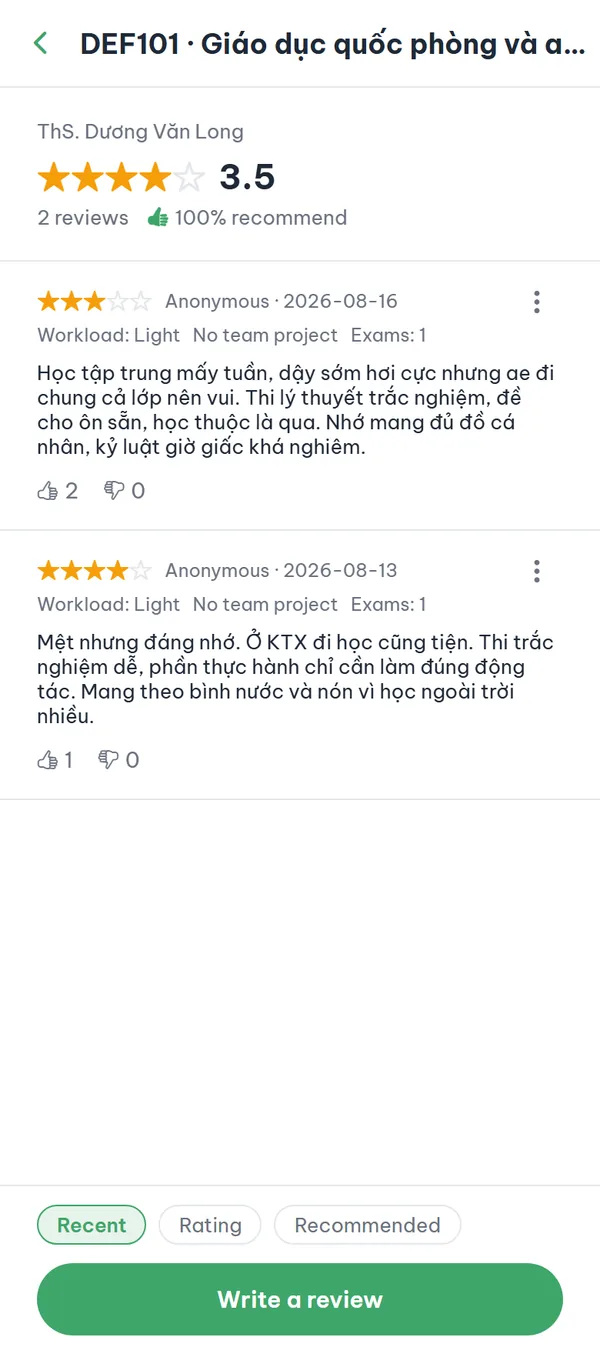
The top of the screen is the summary: the lecturer's name, five stars with the average rating, the number of reviews, and the recommend rate if anyone has reacted. Below that is the list of reviews; each card shows "Anonymous", a star rating, the date, and the text. Three sort buttons at the bottom change the order.
- Three optional tags If the writer filled them in, the card shows "Workload" with "Light"/"Moderate"/"Heavy", "Team project" or "No team project", and the exam count.
- Recommend rate The "% recommend" figure comes from readers' thumb reactions, not from star ratings, and it doesn't appear until someone reacts.
- Sorting The three buttons at the bottom are "Recent", "Rating", and "Recommended".
- Courses with no reviews The screen still shows the lecturer with "No reviews yet", and below it the invitation "No reviews yet — be the first to write one".
3Writing
Write a review for a course you took
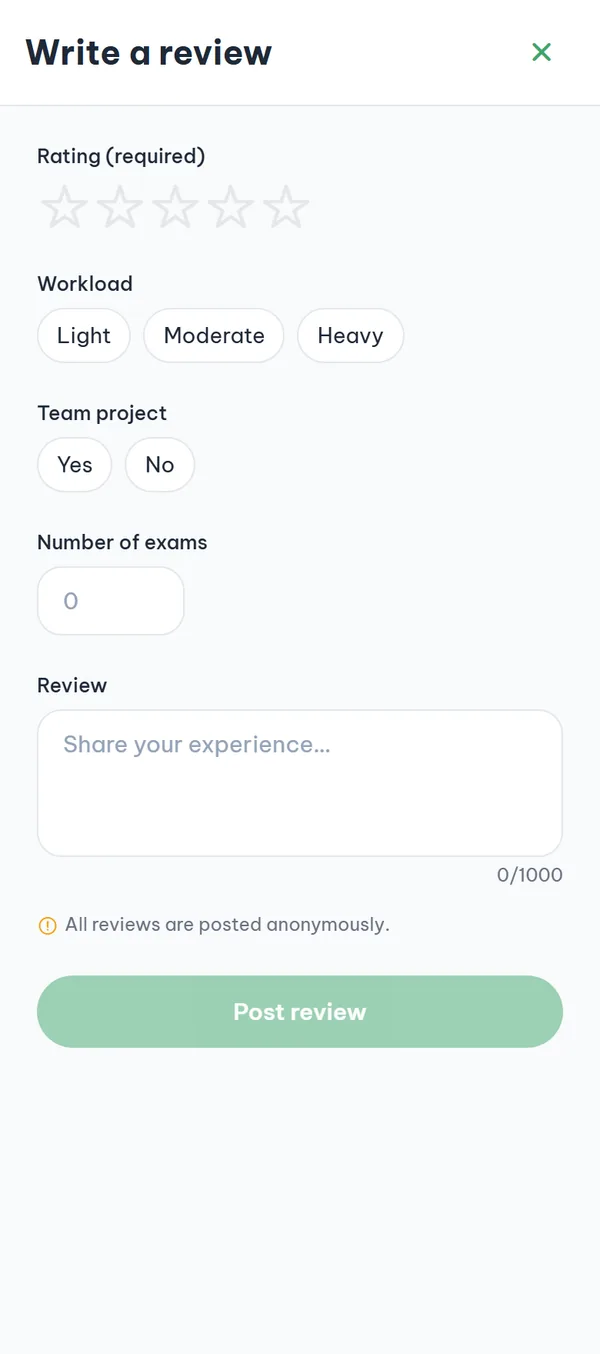
Tap "Write a review" at the bottom of the review screen to open the compose screen. Pick a star rating and write the text — those two are required, while workload, team project, and number of exams are up to you. Once the rating and the text are both filled in, the "Post review" button becomes active, and after you post, the app returns to the review list.
- Star rating Under "Rating (required)", pick one to five stars.
- Workload and exams "Workload" offers "Light"/"Moderate"/"Heavy", "Team project" offers "Yes"/"No", and "Number of exams" takes a number from 0 to 20; tapping a selected tag again clears it.
- Review text The "Share your experience…" box takes up to 1,000 characters and shows a character counter underneath.
- Always anonymous There's no toggle: under the text box it says "All reviews are posted anonymously." and your name never appears in the list.
If you've never agreed to the community rules on the boards, posting shows "You must agree to the community rules before posting." — agree once on the boards, then come back and write.
4After posting
Rewrite, react to, and report reviews
On a course you've already reviewed, the bottom button changes to "Delete my review". There's no edit function, so to change what you wrote you delete it and write again — deletion happens right away, with no confirmation step. On other people's reviews you can tap a thumb or open the ⋮ menu to report.
- Thumb buttons The two buttons show only an icon and a count, with no label. Tap again to clear your reaction, tap the other one to switch it, and on your own review both are disabled.
- The ⋮ menu On someone else's review the menu opens "Report"; on your own there is only the delete button, labeled "Delete post".
- Report sheet The "Report" sheet lists 8 reasons; picking "Other" requires a description, and after you submit, the sheet simply closes without a confirmation message.
- Users you blocked A review from someone you blocked on the boards collapses into one line, "Review from a blocked user", with the rating and text hidden.
A few rules before you write
Reviews shape other students' registration decisions, so the app keeps a few fixed limits in place.
- One review per courseA second review for the same course returns "You've already reviewed this course."
- No editingThe app has no edit function; deleting and writing again counts as a new review.
- A short wait between reviewsPosting several reviews back to back shows "You're posting reviews too often. Please try again shortly." and asks you to wait about 30 seconds.
- Anonymous to readers, still recordedReaders only see "Anonymous", but the app still records which account wrote the review, and the operations team checks that when a report comes in.
Frequently asked questions
I don't see the magnifier button in the timetable tab.
It appears only when you're signed in, have at least one timetable, and your school has a term in the app. Create a timetable first, then reopen the tab and the button shows up.
Search keeps showing "No courses found".
Try the course code, or type without diacritics. If your school's course data hasn't been loaded yet, results stay empty whatever you type, and cancelled classes don't show either. In that case use "Add manually" to enter the course into your timetable yourself.
I tapped the rating but the screen just says "Course not found."
The review screen requires school verification; without it the app shows exactly this message instead of the list. Finish school verification in your account, then come back. If the course belongs to another school, you'll see a message saying you can't open it.
The "Post review" button won't activate.
It activates only when both the rating and the text are filled in. The text box stops at 1,000 characters so you can't go over — the usual culprits are a "Number of exams" above 20 or text that is only spaces; both leave the button disabled with no message.
How do I edit a review I already posted?
You can't. Go back to that course's review screen, tap "Delete my review", and write a new one. If the button still says "Write a review" even though you've written one, scroll the list down until your own review loads.
The time or room in a search result is wrong.
That's a course data error, not a review problem — use "Report an error" on the result card or the flag icon on the section row, pick one of the 5 reasons, and send it. Reporting a review from the ⋮ menu is a different route, meant for what someone wrote in a review.
Ready to get started?
YourCampus is free for students. Download the app and verify your school to unlock everything.